

When to use this
- You are building threaded message views.
- You need a header showing the parent message.
- You want to handle closing the thread view.
Prerequisites
- CometChat React UI Kit v6 installed:
@cometchat/chat-uikit-react. CometChatUIKit.init()andCometChatUIKit.login()complete before rendering.- A valid
parentMessageis required.
Quick start
- Add the component to your UI.
- Verify the component renders after
init()andlogin().
Core concepts
parentMessageis required to render the header.- Use
onCloseto control thread navigation.
Implementation
AI Agent Component Spec
AI Agent Component Spec
- Package:
@cometchat/chat-uikit-react - Import:
import { CometChatThreadHeader } from "@cometchat/chat-uikit-react"; - Minimal JSX:
<CometChatThreadHeader parentMessage={parentMessage} /> - Required setup:
CometChatUIKit.init(UIKitSettings)thenCometChatUIKit.login("UID") - Key props:
parentMessage: CometChat.BaseMessage(required) - CSS class:
.cometchat-thread-header
Overview
What you’re changing: Overview. Where to change it: Component props or CSS as shown below. Default behavior: UI Kit defaults. Override: Use the examples in this section. Verify: The UI reflects the change shown below. CometChatThreadHeader is a Component that displays the parent message & number of replies of thread.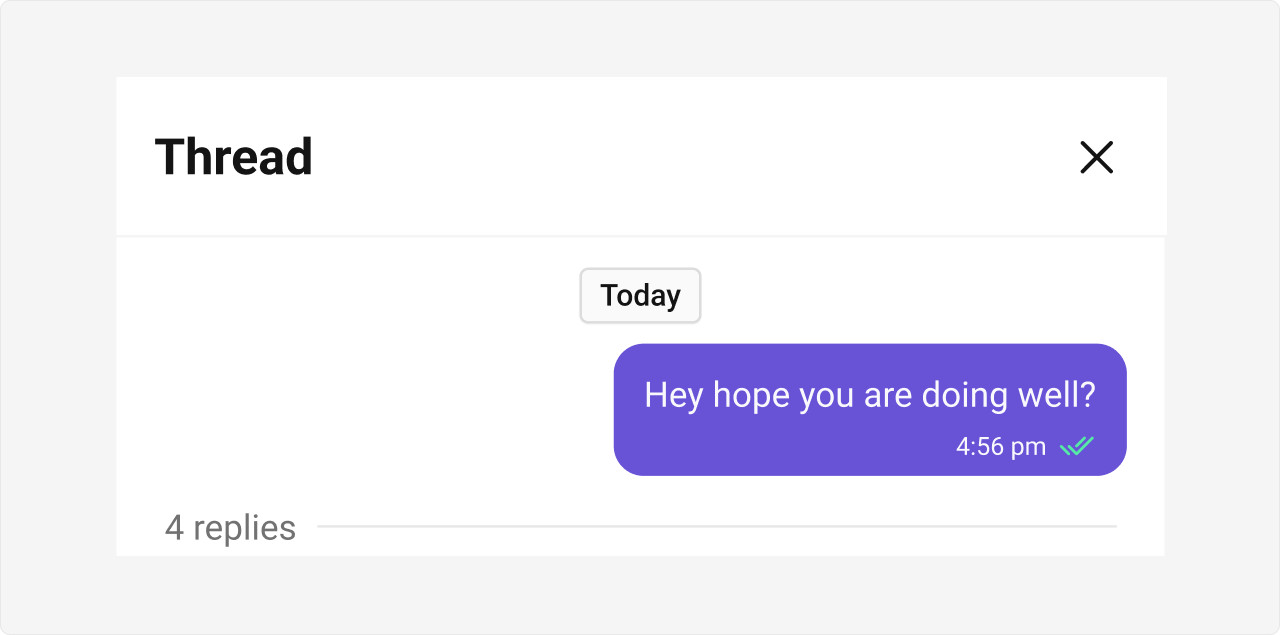
Before using this component: Ensure
CometChatUIKit.init(UIKitSettings) has completed and the user is logged in via CometChatUIKit.login("UID"). See React.js Integration.Usage
What you’re changing: Usage. Where to change it: Component props or CSS as shown below. Default behavior: UI Kit defaults. Override: Use the examples in this section. Verify: The UI reflects the change shown below.Integration
The following code snippet illustrates how you can directly incorporate the CometChatThreadHeader component into your Application.- TypeScript
- JavaScript
Actions
Actions dictate how a component functions. They are divided into two types: Predefined and User-defined. You can override either type, allowing you to tailor the behavior of the component to fit your specific needs. Example In this example, we are overriding theonClose of the ThreadedMesssage Component.
- ThreadHeaderDemo.tsx
Events
Events are emitted by aComponent. By using event you can extend existing functionality. Being global events, they can be applied in Multiple Locations and are capable of being Added or Removed.
The ThreadHeader Component does not emit any events of its own.
Customization
What you’re changing: Customization. Where to change it: Component props or CSS as shown below. Default behavior: UI Kit defaults. Override: Use the examples in this section. Verify: The UI reflects the change shown below. To fit your app’s design requirements, you can customize the appearance of the conversation component. We provide exposed methods that allow you to modify the experience and behavior according to your specific needs.Style
Using Style you can customize the look and feel of the component in your app, These parameters typically control elements such as the color, size, shape, and fonts used within the component. Example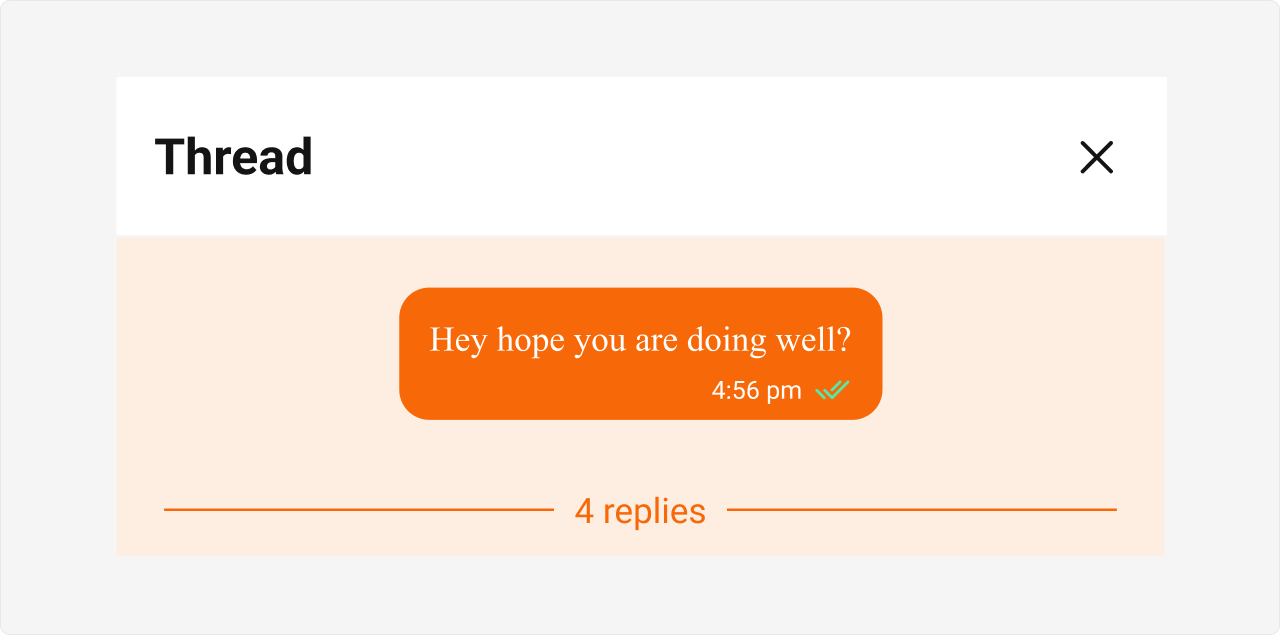
- ThreadHeaderDemo.tsx
- ThreadHeaderDemo.css
Functionality
These are a set of small functional customizations that allow you to fine-tune the overall experience of the component. With these, you can change text, set custom icons, and toggle the visibility of UI elements.- ThreadHeaderDemo.tsx
| Property | Description | Code |
|---|---|---|
| Parent Message | Represents the parent message for displaying threaded conversations. | parentMessage={message} |
| Message Bubble View | A custom view for rendering the message bubble. | messageBubbleView={(message: CometChat.BaseMessage) => <>Custom Bubble View</>} |
| Template | Template for customizing the appearance of the message. | template={"PASS_CUSTOM_MESSAGE_TEMPLATE"} |
| Hide Date | Hides the visibility of the date header. | hideDate={true} |
| Hide Reply Count | Hides the visibility of the reply count. | hideReplyCount={true} |
| Show Scrollbar | Controls the visibility of the scrollbar in the component. | showScrollbar={true} |
| On Error | Callback function triggered when an error occurs. | onError={(error: CometChat.CometChatException) => console.log(error)} |
Advanced
Separator DateTime Format
TheseparatorDateTimeFormat property allows you to customize the Date Separator timestamp displayed in the Threaded Message Preview.
Default Date Time Format:
CalendarObject.
- TypeScript
Fallback Mechanism
- If you do not pass any property in the CalendarObject, the component will first check the global configuration. If the property is also missing in the global configuration, it will fallback to the component’s default formatting.
Message SentAt DateTime Format
ThemessageSentAtDateTimeFormat property allows you to customize the Message SentAt timestamp displayed in the Threaded Message Preview.
Default Date Time Format:
CalendarObject.
- TypeScript
Fallback Mechanism
- If you do not pass any property in the CalendarObject, the component will first check the global configuration. If the property is also missing in the global configuration, it will fallback to the component’s default formatting.
Common Failure Modes
Common Failure Modes
| Symptom | Cause | Fix |
|---|---|---|
| Component doesn’t render | CometChatUIKit.init() not called or not awaited | Ensure init completes before rendering. See Methods |
| No parent message displayed | parentMessage prop not passed or invalid | Ensure a valid CometChat.BaseMessage object is passed |
| Reply count not updating | Real-time events not connected | Check WebSocket connection status |
| SSR hydration error | Component uses browser APIs on server | Wrap in useEffect or dynamic import with ssr: false. See Next.js Integration |
Customization matrix
| What you want to change | Where | Property/API | Example |
|---|---|---|---|
| Render header | CometChatThreadHeader | parentMessage | parentMessage={message} |
| Handle close | CometChatThreadHeader | onClose | onClose={() => setThread(null)} |
Common pitfalls and fixes
| Symptom | Cause | Fix |
|---|---|---|
| Header does not render | Parent message missing | Fetch and pass a valid CometChat.BaseMessage |
| Init/login missing | SDK not initialized | Call CometChatUIKit.init() and login() |
FAQ
Where do I get the parent message? UseCometChat.getMessageDetails() or thread context.
Can I hide the close button?
Use the component props in the Actions section.