

When to use this
- You need a searchable list of groups.
- You want a group picker to start group chats.
- You need to filter groups by tags or type.
Prerequisites
- CometChat React UI Kit v6 installed:
@cometchat/chat-uikit-react. CometChatUIKit.init()andCometChatUIKit.login()complete before rendering.
Quick start
- Add the component to your UI.
- Verify the component renders after
init()andlogin().
Core concepts
groupsRequestBuildercontrols filtering and paging.selectionModeenables multi-select workflows.hideGroupTypetoggles the group type icon.
Implementation
AI Agent Component Spec
AI Agent Component Spec
- Package:
@cometchat/chat-uikit-react - Import:
import { CometChatGroups } from "@cometchat/chat-uikit-react"; - Minimal JSX:
<CometChatGroups /> - Required setup:
CometChatUIKit.init(UIKitSettings)thenCometChatUIKit.login("UID") - Key props:
onItemClick: (group: CometChat.Group) => void,selectionMode: SelectionMode,groupsRequestBuilder: CometChat.GroupsRequestBuilder,hideSearch: boolean,hideGroupType: boolean - CSS class:
.cometchat-groups
Overview
What you’re changing: Overview. Where to change it: Component props or CSS as shown below. Default behavior: UI Kit defaults. Override: Use the examples in this section. Verify: The UI reflects the change shown below. The Groups is a Component, showcasing an accessible list of all available groups. It provides an integral search functionality, allowing you to locate any specific groups swiftly and easily. For each group listed, the group name is displayed by default, in conjunction with the group icon when available. Additionally, it provides a useful feature by displaying the number of members in each group as a subtitle, offering valuable context about group size and activity level.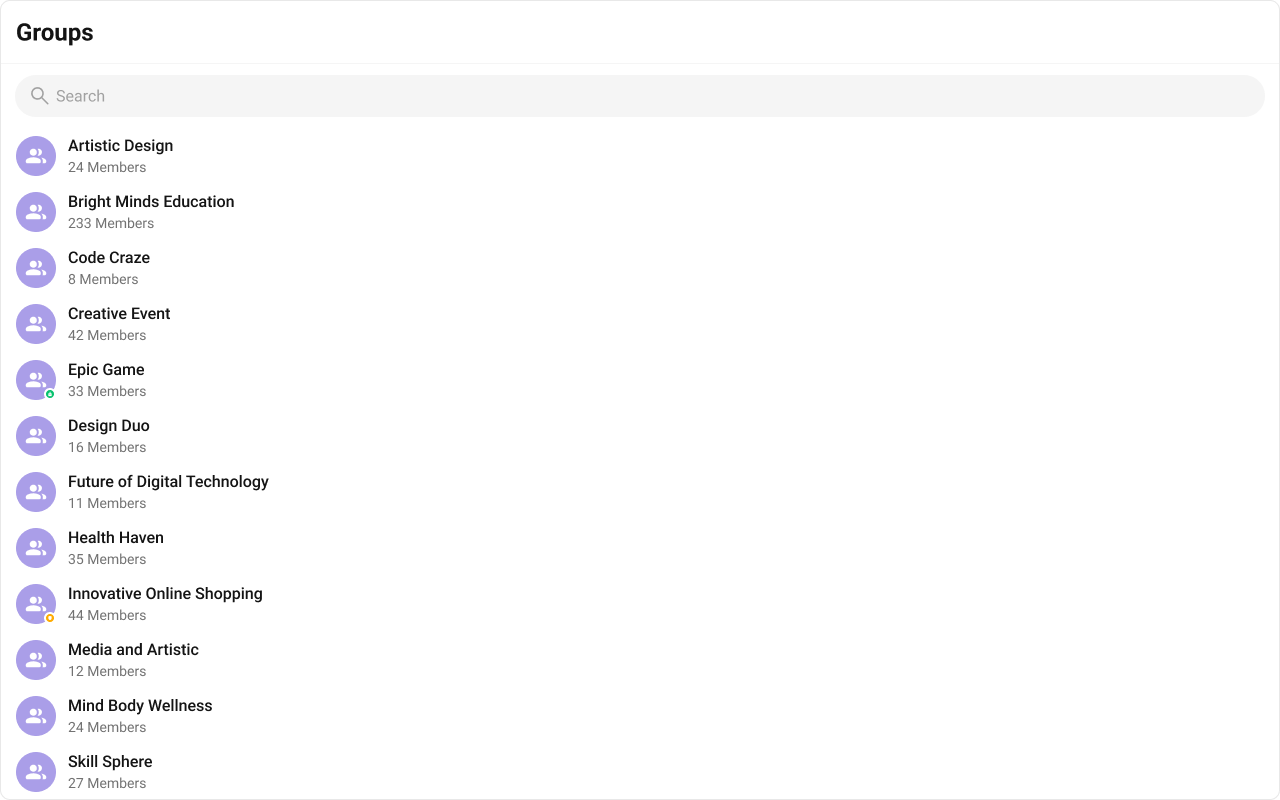
Before using this component: Ensure
CometChatUIKit.init(UIKitSettings) has completed and the user is logged in via CometChatUIKit.login("UID"). See React.js Integration.| Components | Description |
|---|---|
| CometChatList | A reusable container component having title, search box, customisable background and a list view. |
| CometChatListItem | A component that renders data obtained from a Group object on a Tile having a title, subtitle, leading and trailing view. |
Usage
What you’re changing: Usage. Where to change it: Component props or CSS as shown below. Default behavior: UI Kit defaults. Override: Use the examples in this section. Verify: The UI reflects the change shown below.Integration
The following code snippet illustrates how you can directly incorporate the Groups component into your Application.- TypeScript
- JavaScript
Actions
Actions dictate how a component functions. They are divided into two types: Predefined and User-defined. You can override either type, allowing you to tailor the behavior of the component to fit your specific needs.1. onSelect
TheonSelect action is activated when you select the done icon while in selection mode. This returns the group object along with the boolean flag selected to indicate if the group was selected or unselected.
This action does not come with any predefined behavior. However, you have the flexibility to override this event and tailor it to suit your needs using the following code snippet.
- TypeScript
- JavaScript
2. onItemClick
TheonItemClick event is activated when you click on the Group List item. This action does not come with any predefined behavior. However, you have the flexibility to override this event and tailor it to suit your needs using the following code snippet.
- TypeScript
- JavaScript
3. onError
This action doesn’t change the behavior of the component but rather listens for any errors that occur in the Groups component.- TypeScript
- JavaScript
Filters
Filters allow you to customize the data displayed in a list within a Component. You can filter the list based on your specific criteria, allowing for a more customized. Filters can be applied using RequestBuilders of Chat SDK.1. GroupsRequestBuilder
The GroupsRequestBuilder enables you to filter and customize the group list based on available parameters in GroupsRequestBuilder. This feature allows you to create more specific and targeted queries when fetching groups. The following are the parameters available in GroupsRequestBuilder| Methods | Type | Description |
|---|---|---|
| setLimit | number | sets the number groups that can be fetched in a single request, suitable for pagination |
| setSearchKeyword | String | used for fetching groups matching the passed string |
| joinedOnly | boolean | to fetch only joined groups. |
| setTags | Array<String> | used for fetching groups containing the passed tags |
| withTags | boolean | used to fetch tags data along with the list of groups |
- TypeScript
- JavaScript
2. SearchRequestBuilder
The SearchRequestBuilder uses GroupsRequestBuilder enables you to filter and customize the search list based on available parameters in GroupsRequestBuilder. This feature allows you to keep uniformity between the displayed Groups List and searched Group List. Example- TypeScript
- JavaScript
Events
Events are emitted by aComponent. By using event you can extend existing functionality. Being global events, they can be applied in Multiple Locations and are capable of being Added or Removed.
To handle events supported by Groups you have to add corresponding listeners by using CometChatGroupEvents
The Groups component does not produce any events directly.
Customization
What you’re changing: Customization. Where to change it: Component props or CSS as shown below. Default behavior: UI Kit defaults. Override: Use the examples in this section. Verify: The UI reflects the change shown below. To fit your app’s design requirements, you can customize the appearance of the Groups component. We provide exposed methods that allow you to modify the experience and behavior according to your specific needs.Style
Using CSS you can customize the look and feel of the component in your app like the color, size, shape, and fonts. Example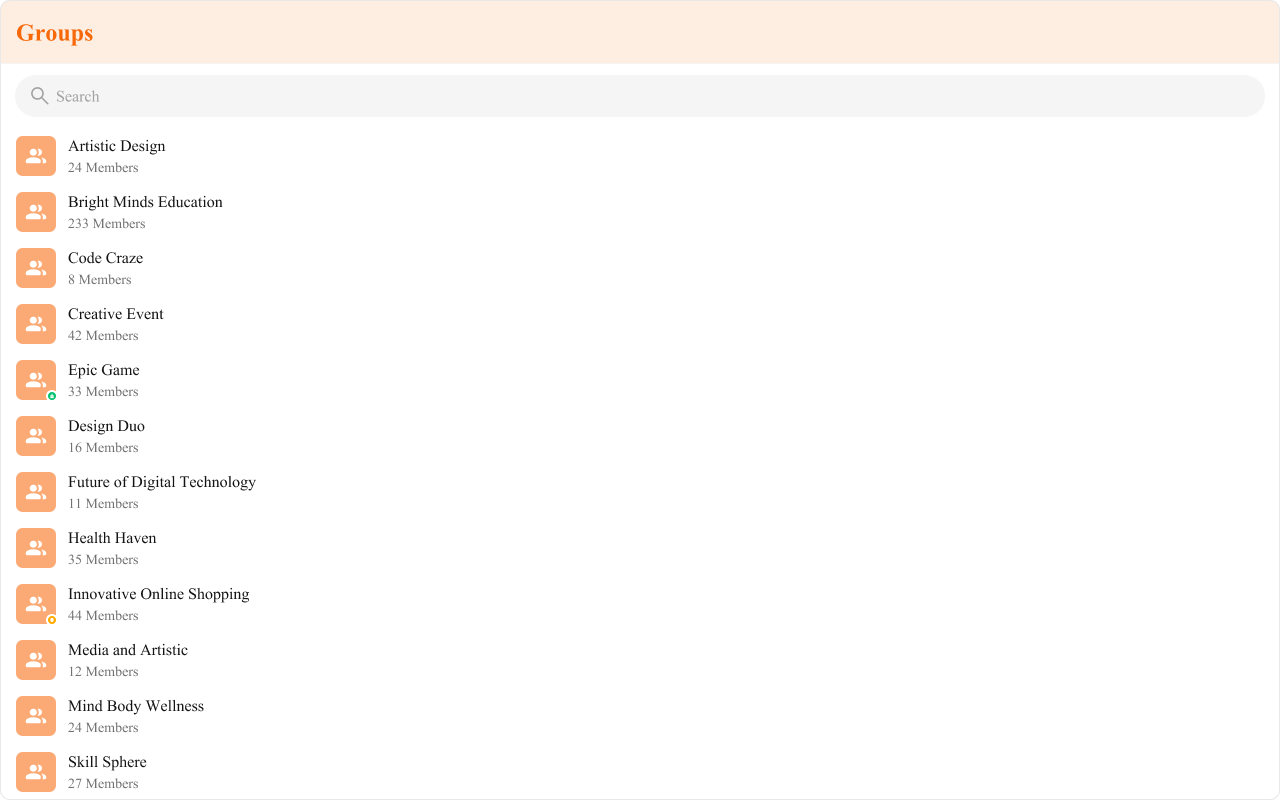
- TypeScript
- JavaScript
- CSS
Functionality
These are a set of small functional customizations that allow you to fine-tune the overall experience of the component. With these, you can change text, set custom icons, and toggle the visibility of UI elements.- TypeScript
- JavaScript
| Property | Description | Code |
|---|---|---|
| Hide Search | Hides the default search bar. | hideSearch={true} |
| Hide Error | Hides the default and custom error view passed in errorView prop. | hideError={true} |
| Hide Group Type | Hides the group type icon. | hideGroupType={true} |
| Active Group | The group to highlight in the list. | activeGroup={chatGroup} |
| Selection Mode | Selection mode to use for the default trailing view. | selectionMode={SelectionMode.multiple} |
| Show Scrollbar | Controls the visibility of the scrollbar in the list. | showScrollbar={true} |
| Loading View | A custom view to display during the loading state. | loadingView={<>Custom Loading View</>} |
| Empty View | Custom view for the empty state of the component. | emptyView={<>Custom Empty View</>} |
| Error View | A custom view to display when an error occurs. | errorView={<>Custom Error View</>} |
Advanced
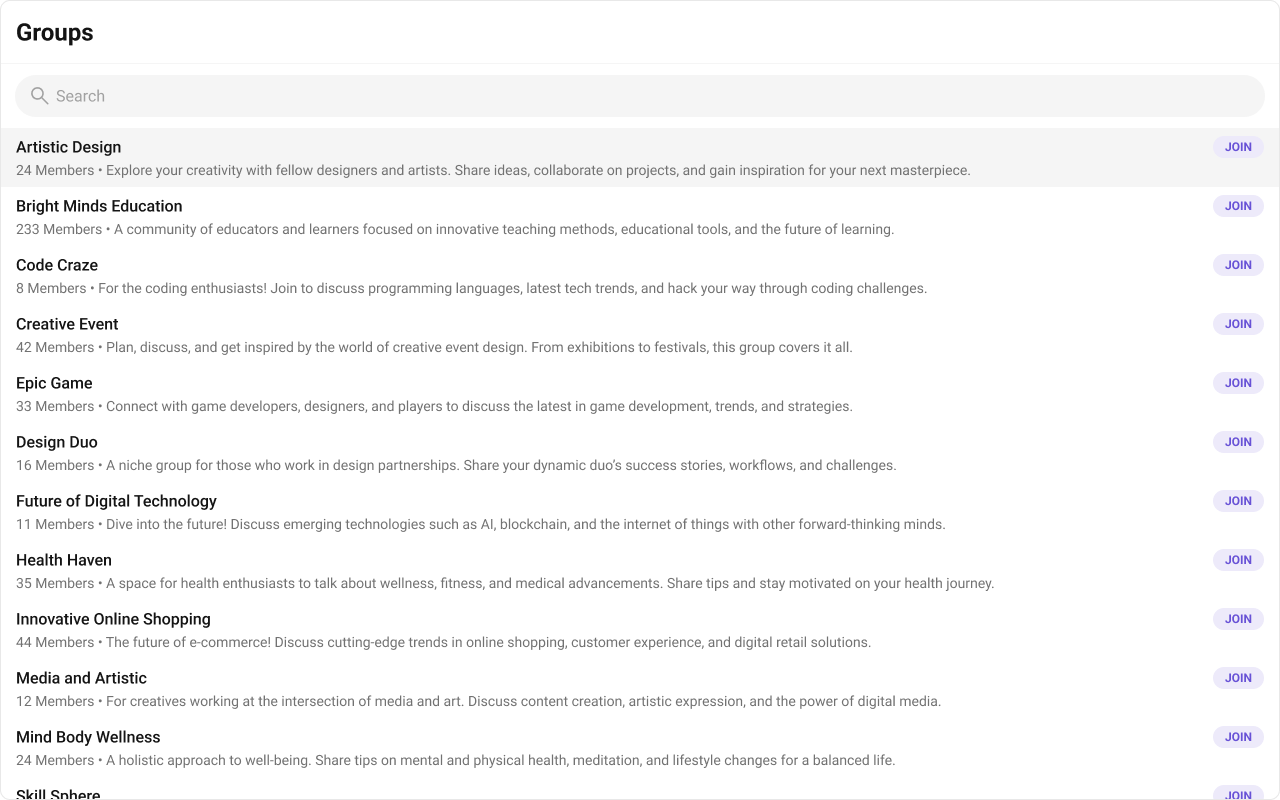
For advanced-level customization, you can set custom views to the component. This lets you tailor each aspect of the component to fit your exact needs and application aesthetics. You can create and define your views, layouts, and UI elements and then incorporate those into the component.ItemView
A custom view to render for each group in the fetched list. Shown below is the default chat interface.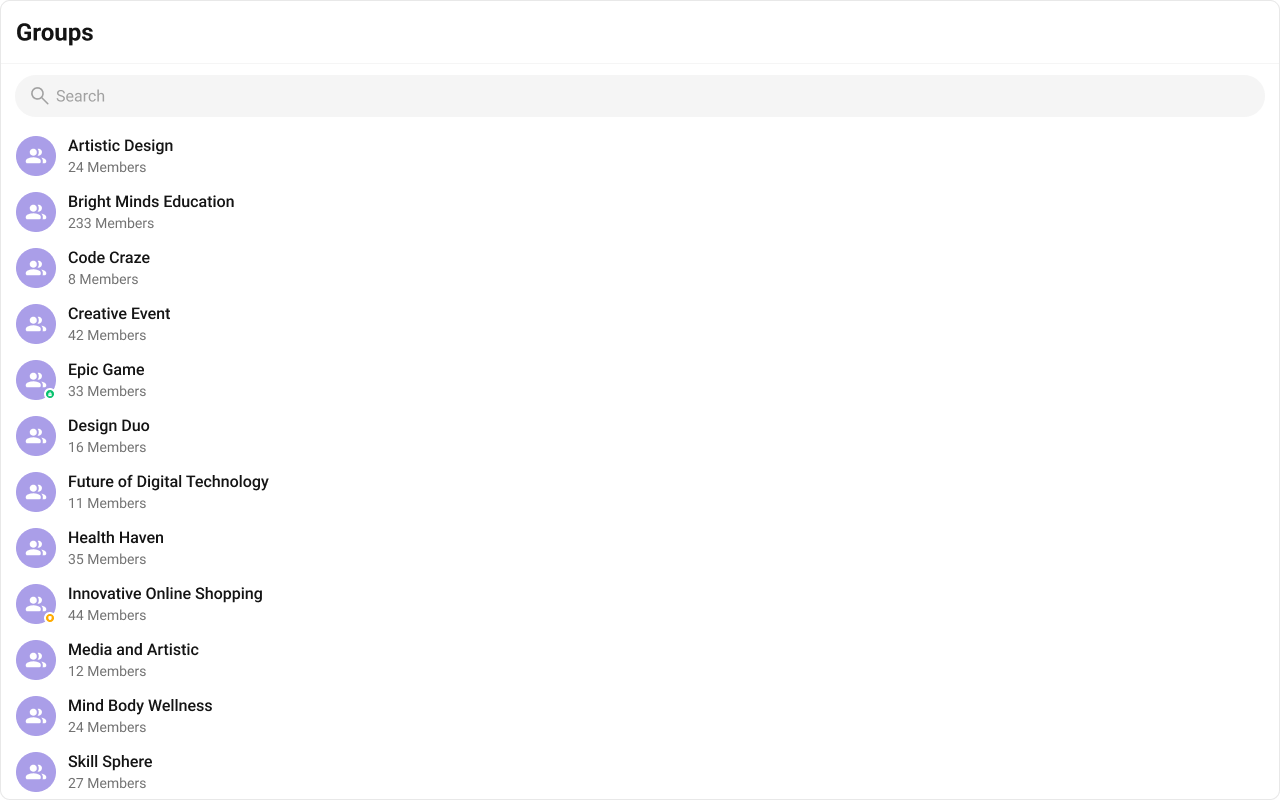
- TypeScript
- JavaScript
- CSS
TitleView
The customized chat interface is displayed below.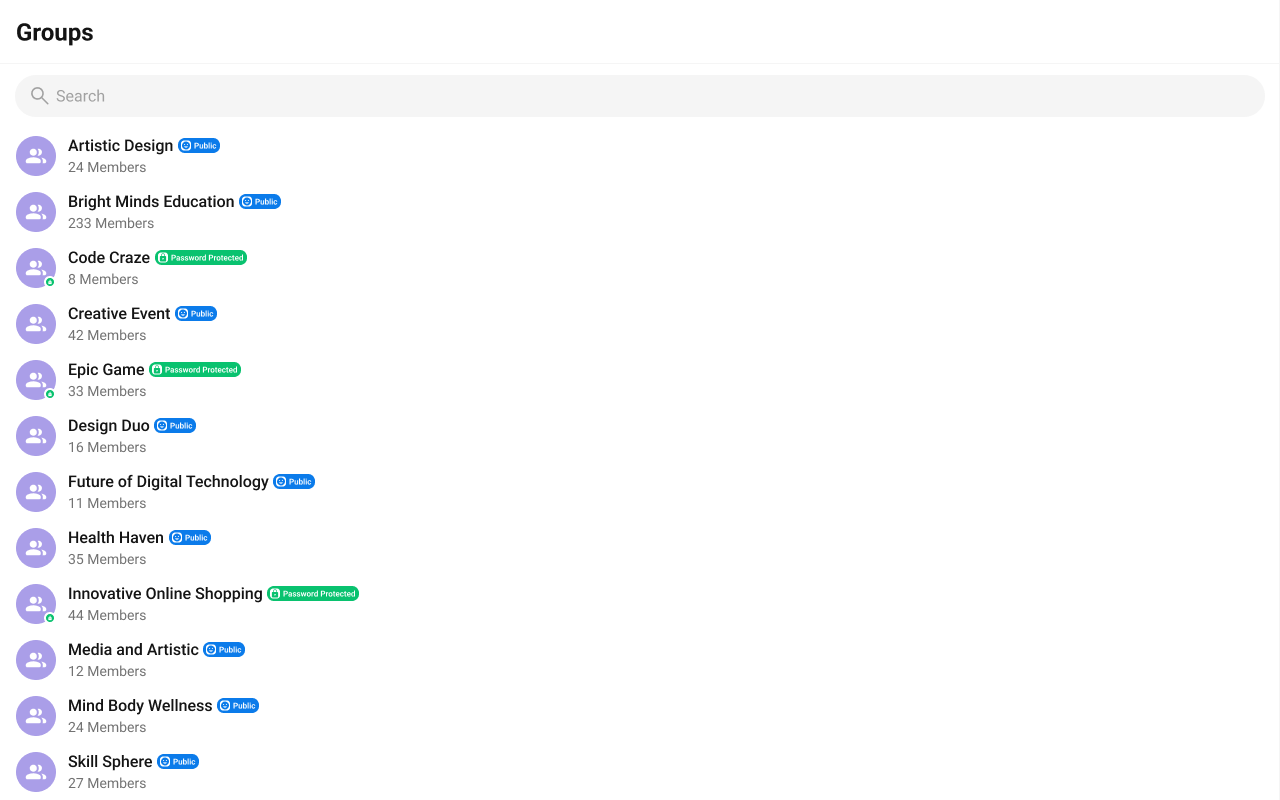
- TypeScript
- CSS
SubtitleView
Custom subtitle view to be rendered for each group in the fetched list. Shown below is the default chat interface.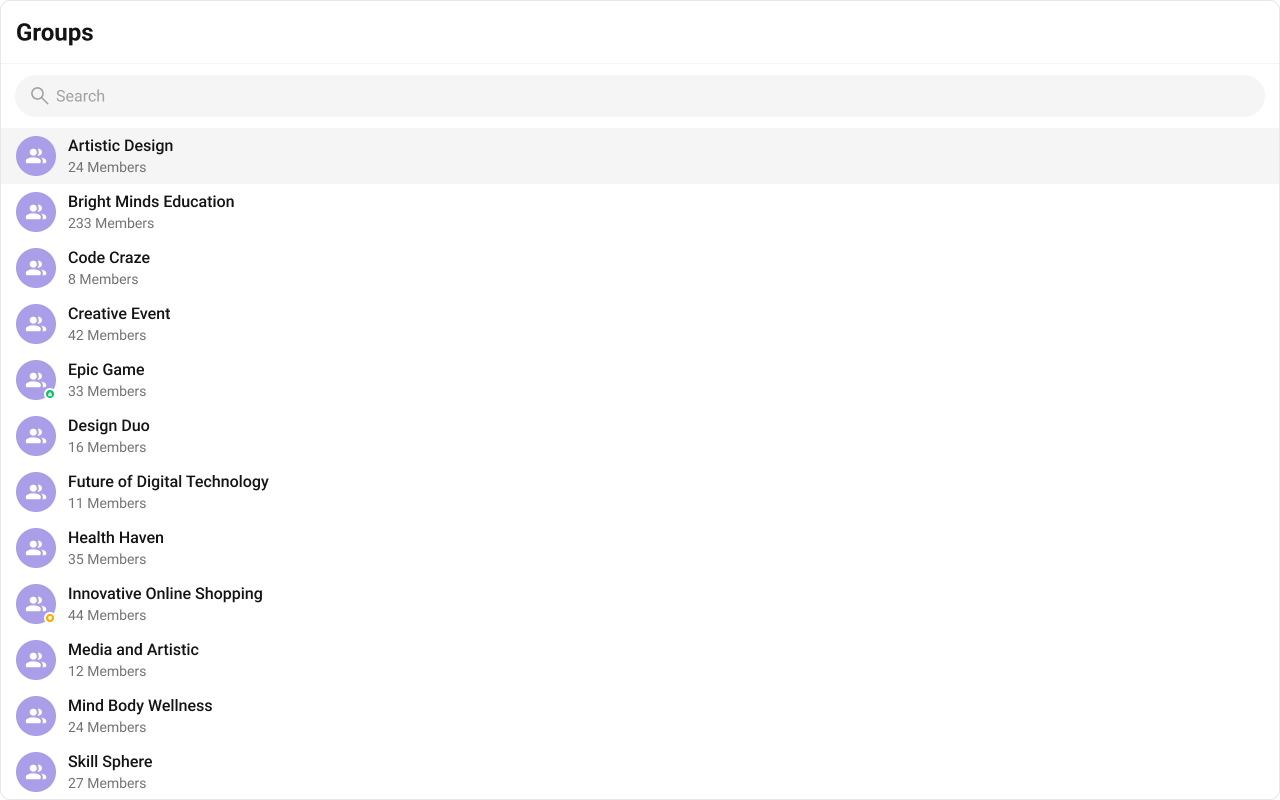
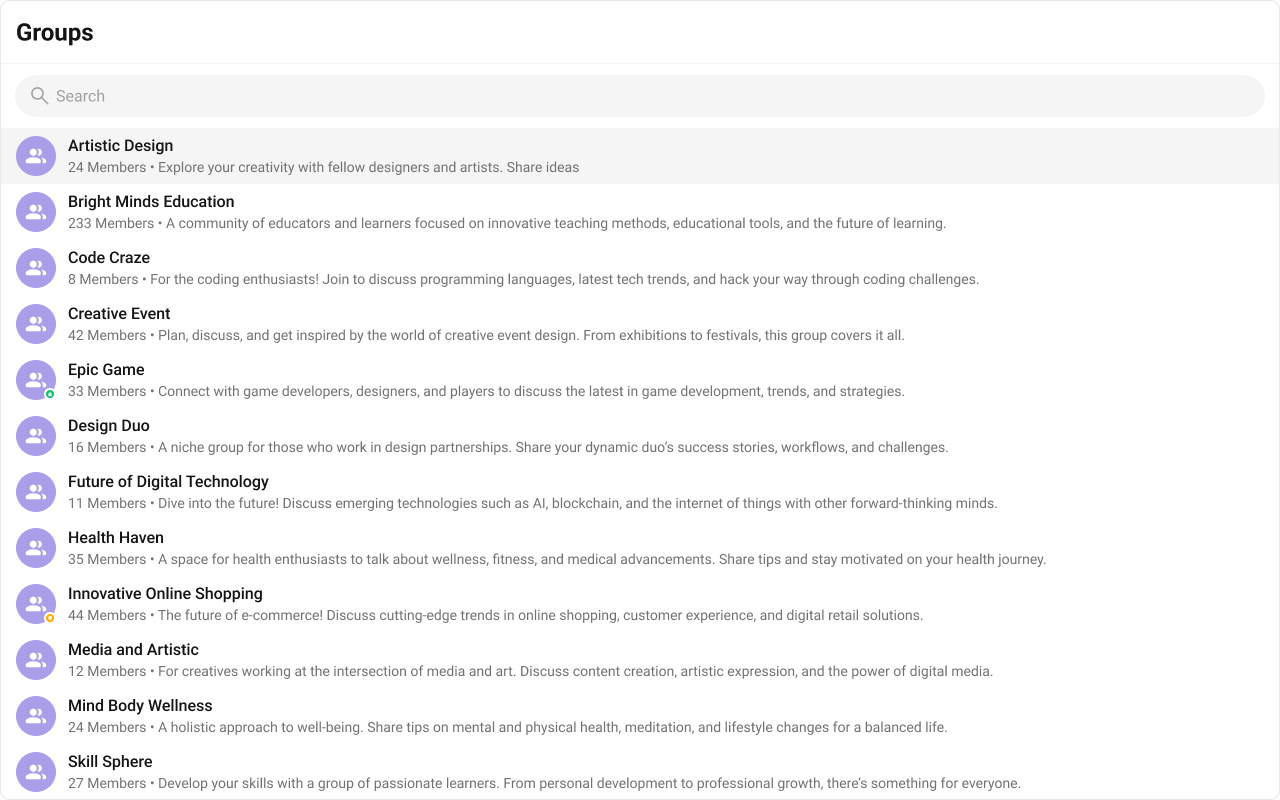
- TypeScript
- JavaScript
- CSS
LeadingView
The customized chat interface is displayed below.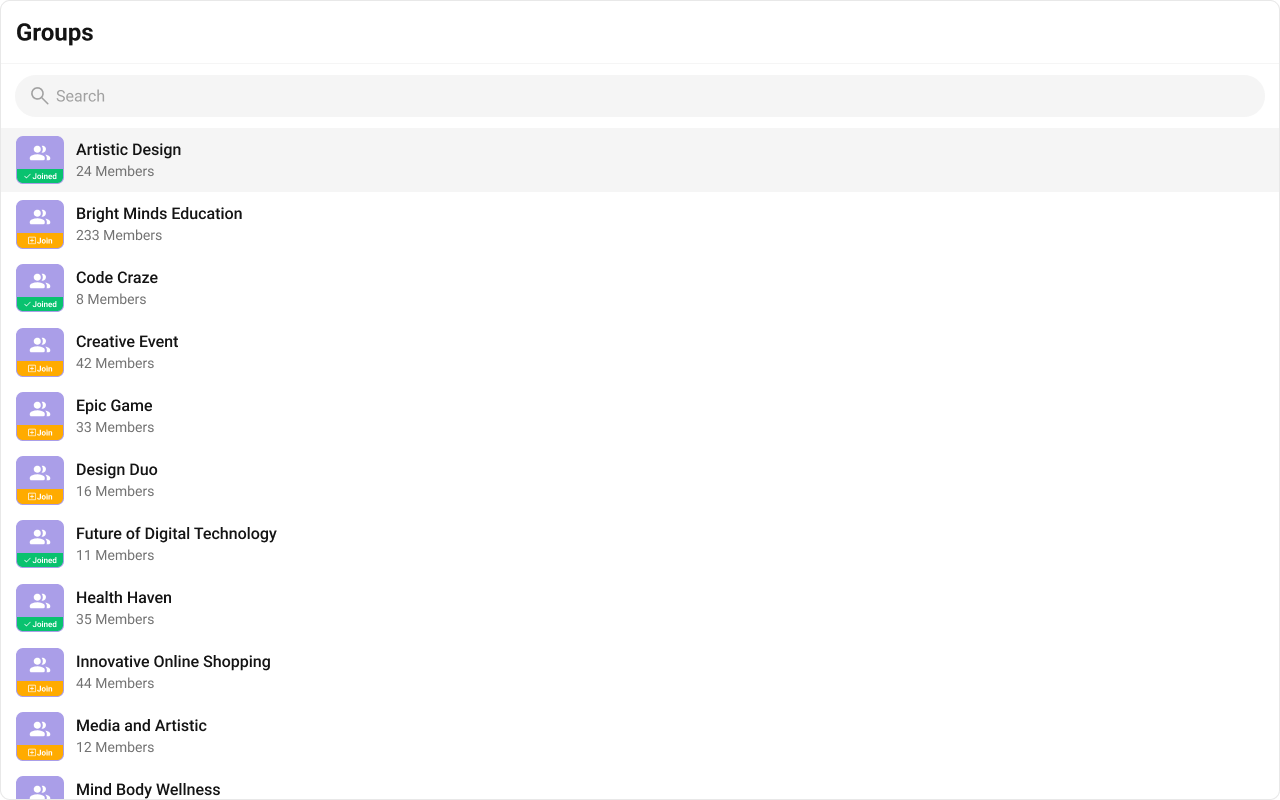
- TypeScript
- CSS
TrailingView
The customized chat interface is displayed below.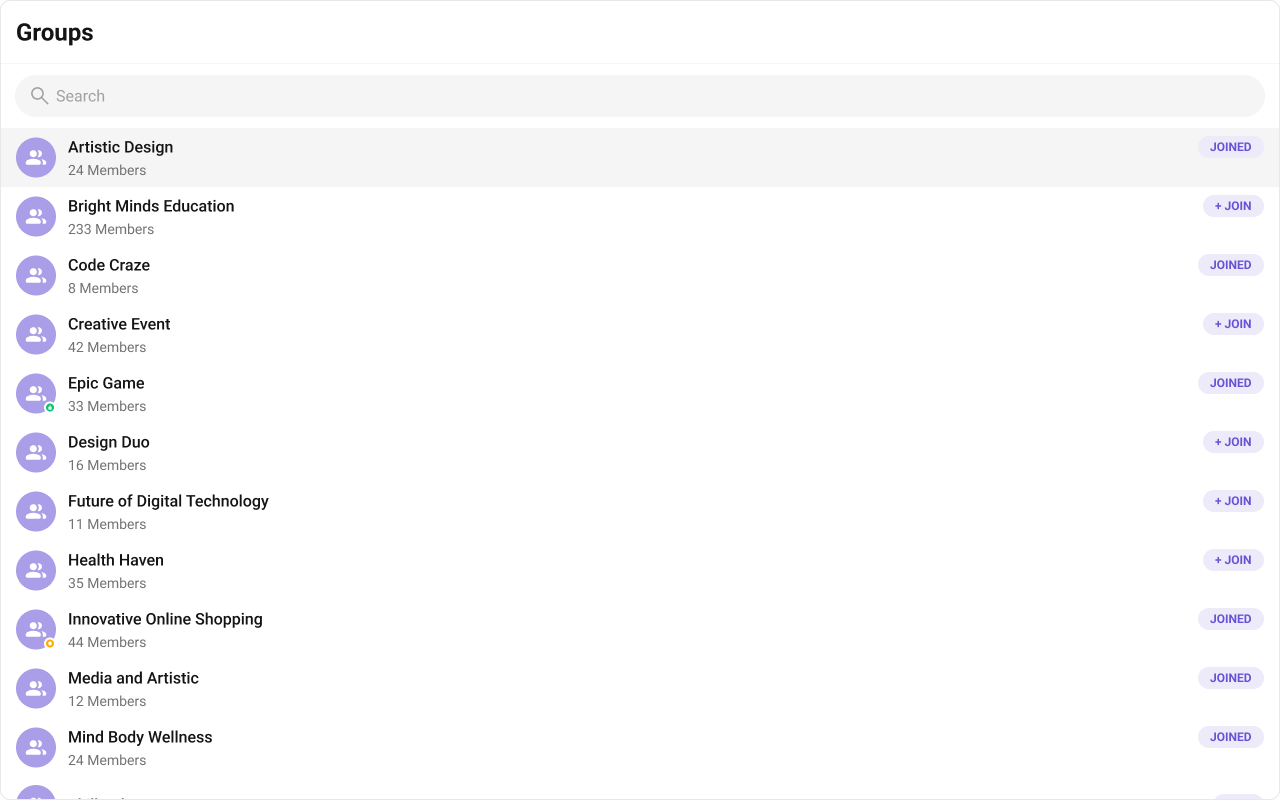
- TypeScript
- CSS
Header View
A custom component to render in the top-right corner of the groups list. The customized chat interface is displayed below.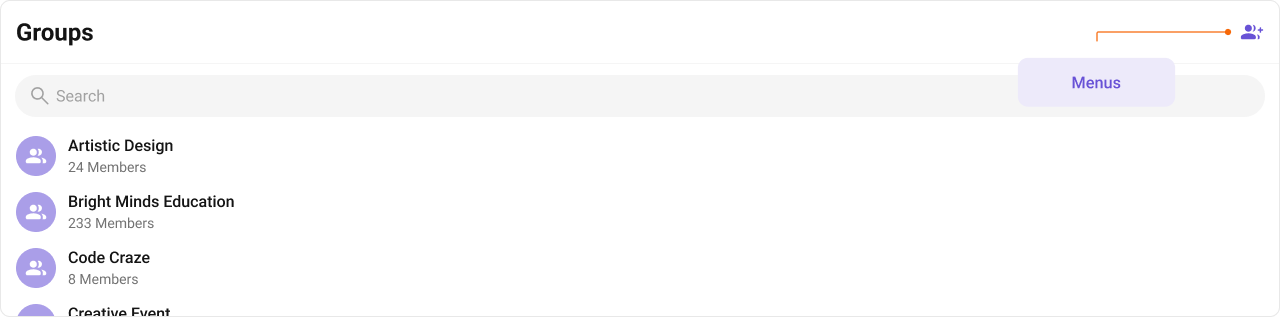
- TypeScript
- JavaScript
- CSS
Options
You can set the Custom options to the Groups component. The customized chat interface is displayed below.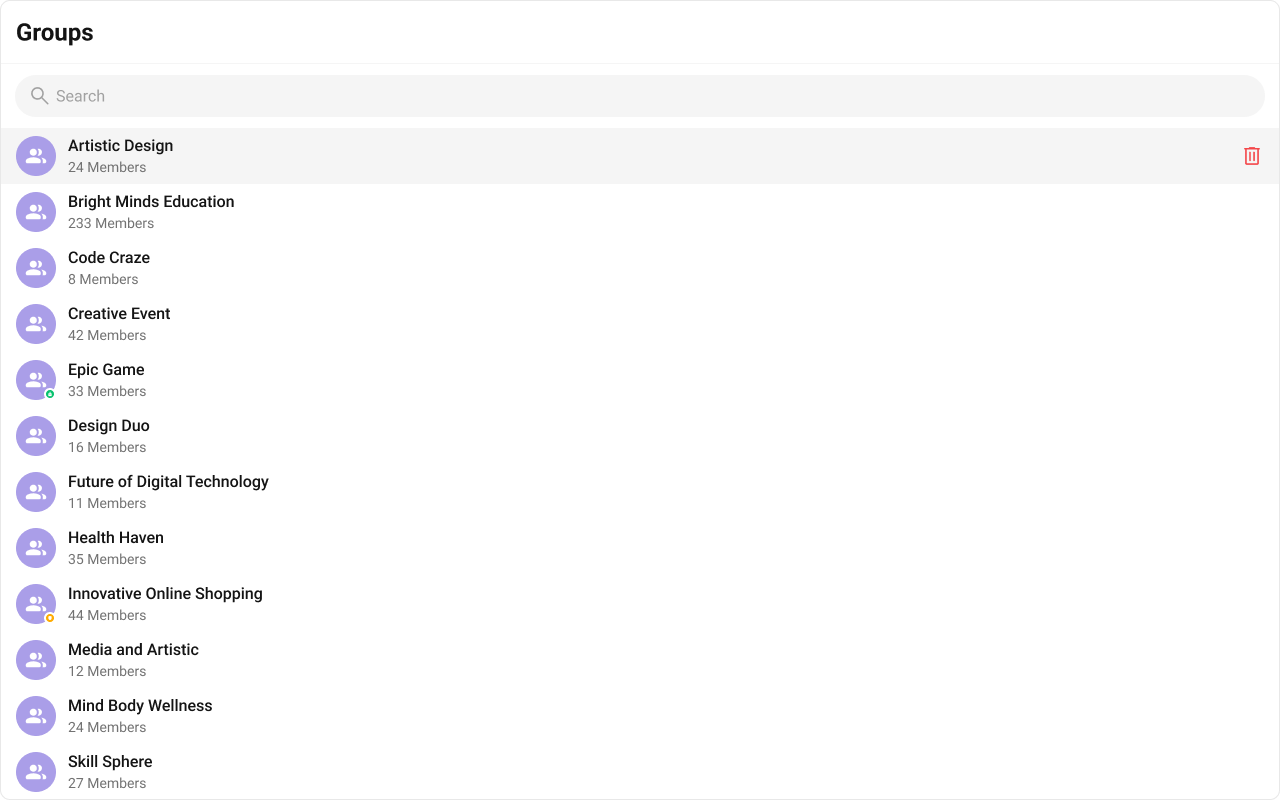
- TypeScript
- JavaScript
- CSS
Component API Pattern
What you’re changing: Component API Pattern. Where to change it: Component props or CSS as shown below. Default behavior: UI Kit defaults. Override: Use the examples in this section. Verify: The UI reflects the change shown below.| Customization Type | Prop Pattern | Example |
|---|---|---|
| Callback actions | on<Event>={(param) => {}} | onItemClick={(group) => {}} |
| Data filtering | groupsRequestBuilder={new CometChat.GroupsRequestBuilder()} | groupsRequestBuilder={builder} |
| Toggle features | hide<Feature>={true|false} | hideSearch={true} |
| Custom rendering | <slot>View={(<params>) => JSX} | itemView={(group) => <div>...</div>} |
| CSS overrides | Target .cometchat-groups class in global CSS | .cometchat-groups { ... } |
Common Failure Modes
Common Failure Modes
| Symptom | Cause | Fix |
|---|---|---|
| Component doesn’t render | CometChatUIKit.init() not called or not awaited | Ensure init completes before rendering. See Methods |
| Component renders but shows no data | User not logged in | Call CometChatUIKit.login("UID") after init |
| Callback not firing | Wrong prop name or signature | Check the Actions section for exact prop name and parameter types |
| Custom view not appearing | Returning null or undefined from view prop | Ensure view function returns valid JSX |
| SSR hydration error | Component uses browser APIs on server | Wrap in useEffect or dynamic import with ssr: false. See Next.js Integration |
Customization matrix
| What you want to change | Where | Property/API | Example |
|---|---|---|---|
| Handle item click | CometChatGroups | onItemClick | onItemClick={(g) => setActive(g)} |
| Enable multi-select | CometChatGroups | selectionMode | selectionMode={SelectionMode.multiple} |
| Filter groups | CometChatGroups | groupsRequestBuilder | new CometChat.GroupsRequestBuilder().setLimit(10) |
| Hide group type | CometChatGroups | hideGroupType | hideGroupType={true} |
Common pitfalls and fixes
| Symptom | Cause | Fix |
|---|---|---|
| Component does not render | Init/login not complete | Call CometChatUIKit.init() and login() first |
| List is empty | Filters too strict | Relax groupsRequestBuilder filters |
| Group type icon missing | hideGroupType enabled | Set hideGroupType={false} |
| Callbacks not firing | Wrong prop name | Use onItemClick or onSelect |
| Styles not applying | CSS Modules used | Use global CSS with .cometchat-groups |
FAQ
Can I show only joined groups? Yes. UseGroupsRequestBuilder filters for membership.
How do I hide the group type icon?
Set hideGroupType={true}.