

When to use this
- You need to handle incoming audio/video calls.
- You want a default accept/decline screen.
- You need to customize call handling.
Prerequisites
- CometChat React UI Kit v6 installed:
@cometchat/chat-uikit-react. @cometchat/calls-sdk-javascriptinstalled.CometChatUIKit.init()andCometChatUIKit.login()complete before rendering.
Quick start
- Add the component to your UI.
- Verify the component renders after
init()andlogin().
Core concepts
- Mount
CometChatIncomingCallat the app root. - Use
onAcceptandonDeclineto customize behavior.
Implementation
AI Agent Component Spec
AI Agent Component Spec
- Package:
@cometchat/chat-uikit-react - Import:
import { CometChatIncomingCall } from "@cometchat/chat-uikit-react"; - Minimal JSX:
<CometChatIncomingCall />— auto-detects incoming calls when mounted at app root - Required setup:
CometChatUIKit.init(UIKitSettings)thenCometChatUIKit.login("UID")+@cometchat/calls-sdk-javascriptinstalled - Key props:
onAccept(callback),onDecline(callback),call(CometChat.Call),disableSoundForCalls(boolean),callSettingsBuilder(function) - CSS class:
.cometchat-incoming-call - Events:
ccCallRejected,ccCallAccepted,ccCallEnded
Overview
What you’re changing: Overview. Where to change it: Component props or CSS as shown below. Default behavior: UI Kit defaults. Override: Use the examples in this section. Verify: The UI reflects the change shown below. TheIncoming call is a Component that serves as a visual representation when the user receives an incoming call, such as a voice call or video call, providing options to answer or decline the call.
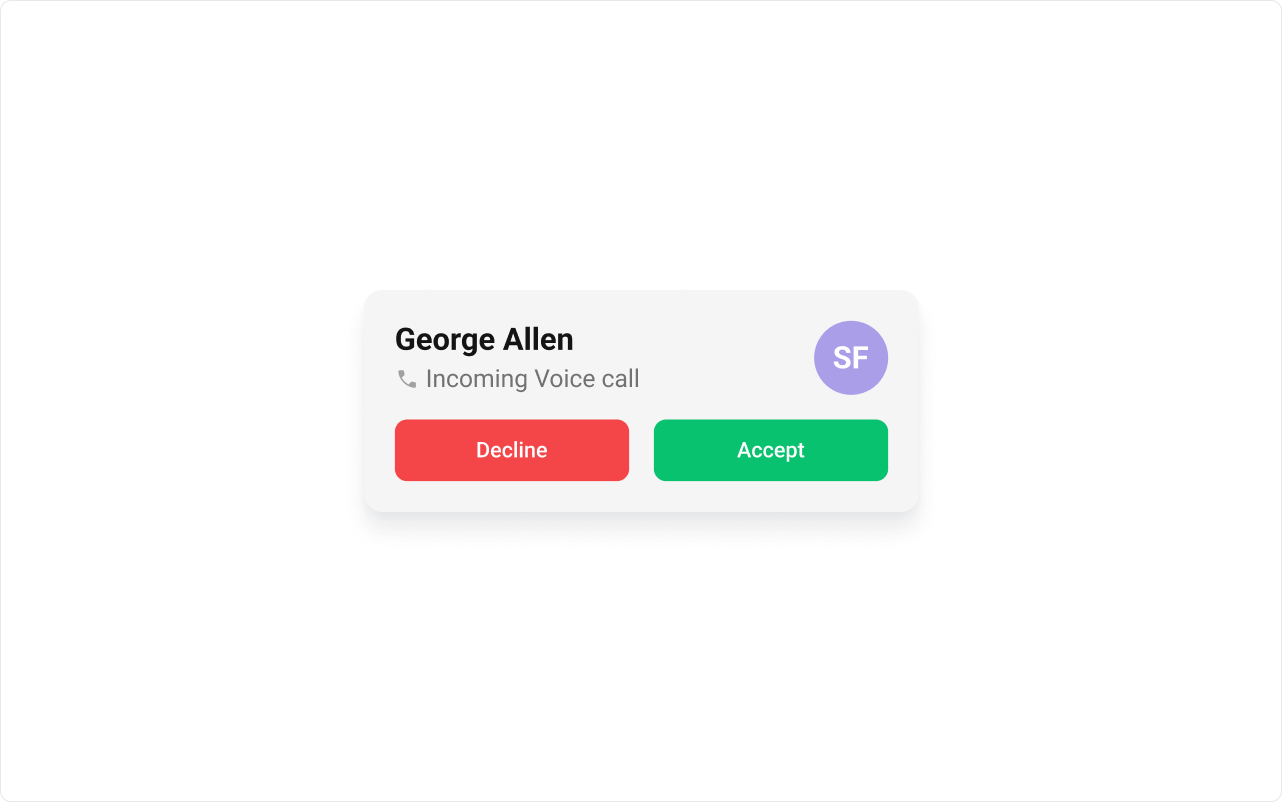
Incoming Call is comprised of the following base components:
| Components | Description |
|---|---|
| cometchat-list-item | This component’s view consists of avatar, status indicator , title, and subtitle. The fields are then mapped with the SDK’s user, group class. |
| cometchat-button | This component represents a button with optional icon and text. |
| cometchat-avatar | This component component displays an image or user’s avatar with fallback to the first two letters of the username. |
Before using this component: Ensure
CometChatUIKit.init(UIKitSettings) has completed and the user is logged in via CometChatUIKit.login("UID"). See React.js Integration.Usage
What you’re changing: Usage. Where to change it: Component props or CSS as shown below. Default behavior: UI Kit defaults. Override: Use the examples in this section. Verify: The UI reflects the change shown below.Integration
- TypeScript
- JavaScript
Actions
Actions dictate how a component functions. They are divided into two types: Predefined and User-defined. You can override either type, allowing you to tailor the behavior of the component to fit your specific needs.1. onAccept
onAccept is triggered when you click the accept button of the Incoming Call component. You can override this action using the following code snippet.
- TypeScript
- JavaScript
2. onDecline
onDecline is triggered when you click the Decline button of the Incoming Call component. You can override this action using the following code snippet.
- TypeScript
- JavaScript
3. onError
This action doesn’t change the behavior of the component but rather listens for any errors that occur in the Incoming Call component.- TypeScript
- JavaScript
Filters
You can setCallSettingsBuilder in the Incoming Call Component to customise the calling experience. To know more about the filters available please refer to CallSettingsBuilder.
- TypeScript
- JavaScript
Events
Events are emitted by aComponent. By using event you can extend existing functionality. Being global events, they can be applied in Multiple Locations and are capable of being Added or Removed.
The list of events emitted by the Incoming Call component is as follows.
| Event | Description |
|---|---|
| ccCallRejected | This event is triggered when the initiated call is rejected by the receiver. |
| ccCallAccepted | This event is triggered when the initiated call is accepted by the receiver. |
| ccCallEnded | This event is triggered when the initiated call successfully ends. |
- Add Listener
- Remove Listener
Customization
What you’re changing: Customization. Where to change it: Component props or CSS as shown below. Default behavior: UI Kit defaults. Override: Use the examples in this section. Verify: The UI reflects the change shown below. To fit your app’s design requirements, you can customize the appearance of the Incoming Call component. We provide exposed methods that allow you to modify the experience and behavior according to your specific needs.Style
Using CSS you can customize the look and feel of the component in your app like the color, size, shape, and fonts. Example: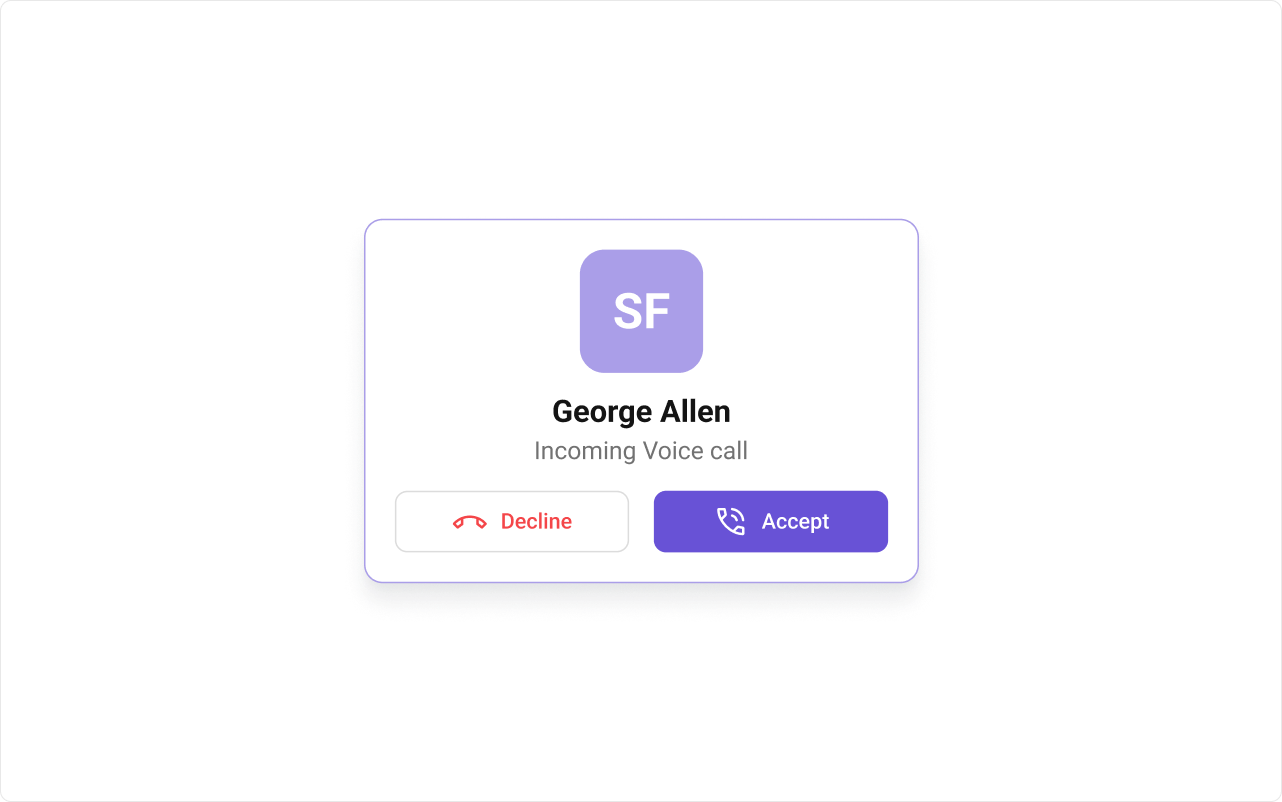
- TypeScript
- JavaScript
- CSS
Functionality
These are a set of small functional customizations that allow you to fine-tune the overall experience of the component. With these, you can change text, set custom icons, and toggle the visibility of UI elements. Here is a code snippet demonstrating how you can customize the functionality of theIncoming Call component.
- TypeScript
- JavaScript
| Property | Description | Code |
|---|---|---|
| Call | The CometChat call object used to initialize and display the incoming call component. | call={callObject} |
| Disable sound | Disables the sound for incoming calls. | disableSoundForCalls={true} |
| Custom sound | Specifies a custom sound to play for incoming calls. | customSoundForCalls='Your Custom Sound For Calls' |
Advanced
For advanced-level customization, you can set custom views to the component. This lets you tailor each aspect of the component to fit your exact needs and application aesthetics. You can create and define your views, layouts, and UI elements and then incorporate those into the component.SubtitleView
PropertysubtitleView is a function that renders a JSX element to display the subtitle view.
- TypeScript
- JavaScript
LeadingView
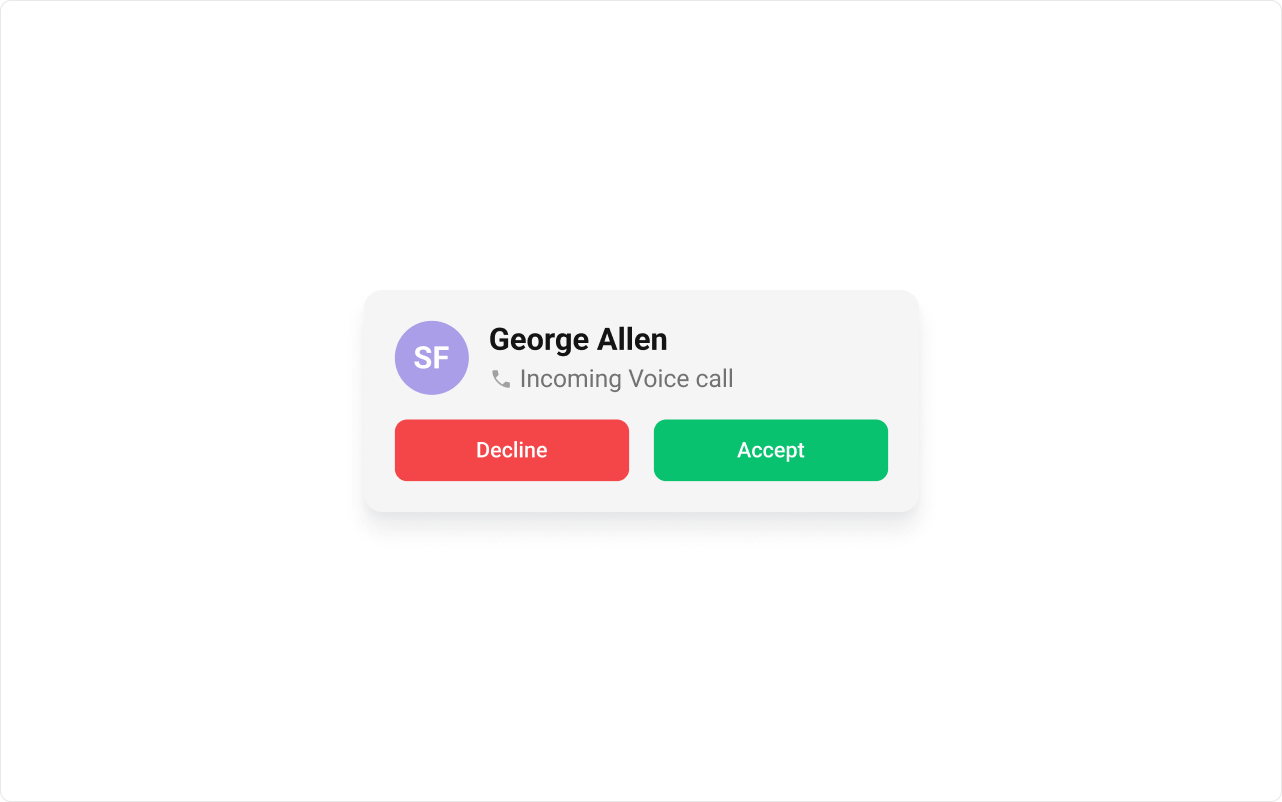
PropertyleadingView is a function that renders a JSX element to display the leading view.
The customized call interface is displayed below.
- TypeScript
- JavaScript
- CSS
TitleView
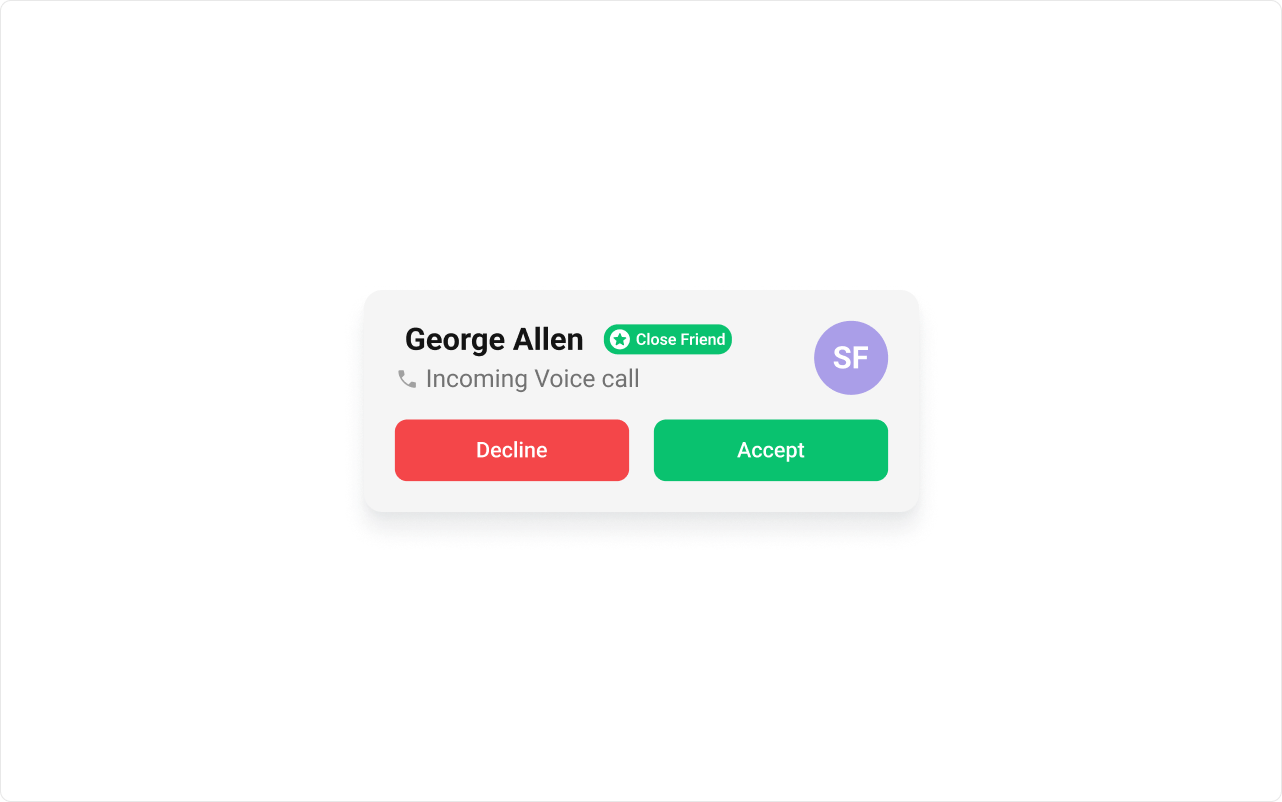
PropertytitleView is a function that renders a JSX element to display the title view.
The customized call interface is displayed below.
- TypeScript
- JavaScript
- CSS
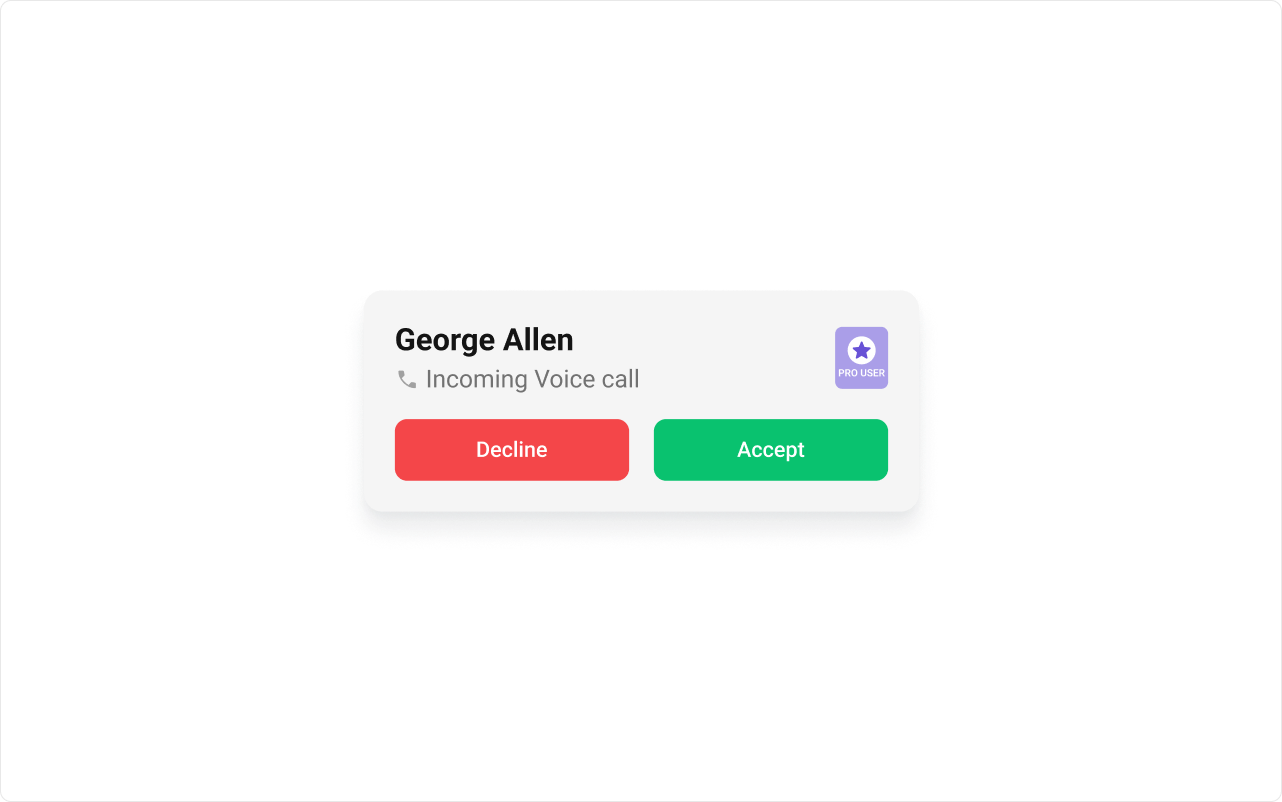
TrailingView
PropertytrailingView is a function that renders a JSX element to display the trailing view.
The customized call interface is displayed below.
- TypeScript
- JavaScript
- CSS
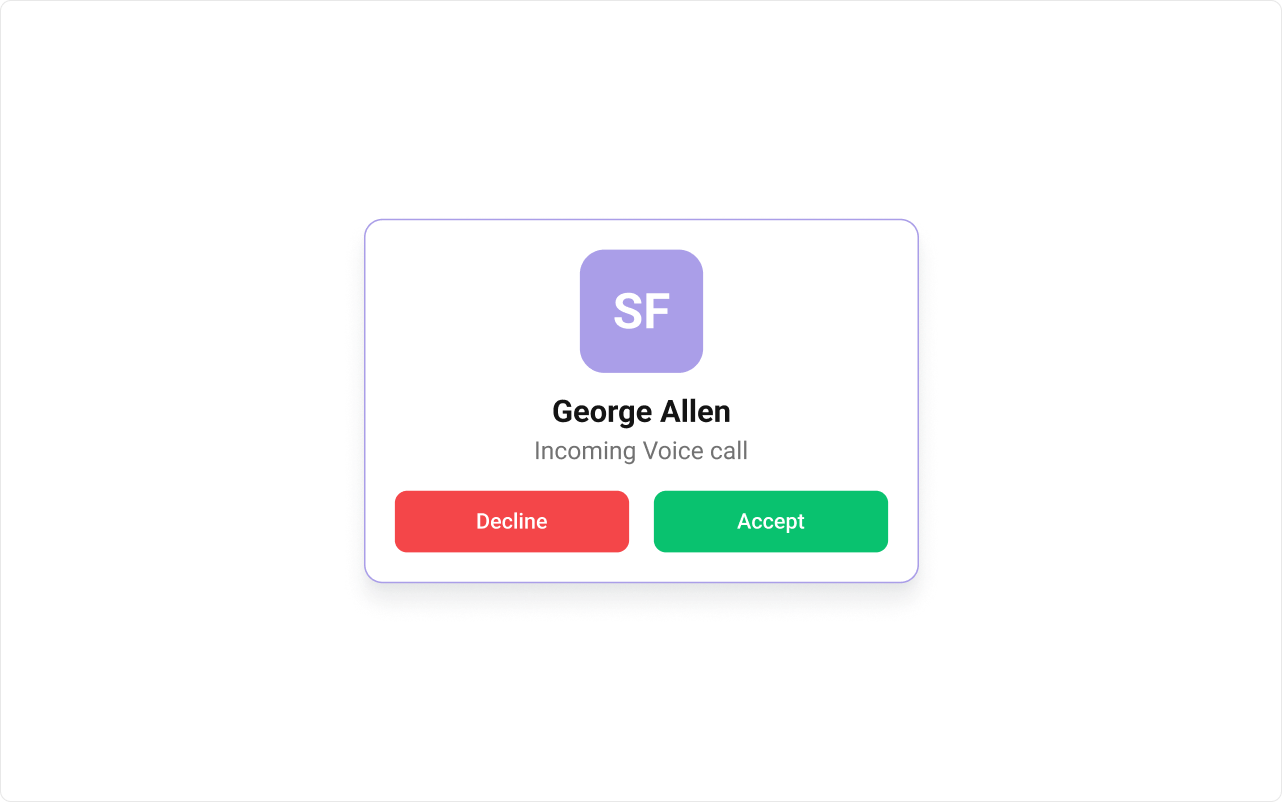
ItemView
PropertyitemView is a function that renders a JSX element to display the item view.
The customized call interface is displayed below.
- TypeScript
- JavaScript
- CSS
Common Failure Modes
Common Failure Modes
| Symptom | Cause | Fix |
|---|---|---|
| Component doesn’t render | CometChatUIKit.init() not called or not awaited | Ensure init completes before rendering. See Methods |
| Component renders but no incoming call shown | User not logged in or no active incoming call | Call CometChatUIKit.login("UID") after init. The component auto-detects incoming calls. |
| Callback not firing | Wrong prop name or signature | Check the Actions section for exact prop name and parameter types |
| Custom view not appearing | Returning null or undefined from view prop | Ensure view function returns valid JSX |
| No ringtone playing | disableSoundForCalls set to true or custom sound path invalid | Set disableSoundForCalls={false} and verify custom sound file path |
| SSR hydration error | Component uses browser APIs on server | Wrap in useEffect or dynamic import with ssr: false. See Next.js Integration |
Customization matrix
| What you want to change | Where | Property/API | Example |
|---|---|---|---|
| Handle accept | CometChatIncomingCall | onAccept | onAccept={() => ...} |
| Handle decline | CometChatIncomingCall | onDecline | onDecline={() => ...} |
| Disable sounds | CometChatIncomingCall | disableSoundForCalls | disableSoundForCalls={true} |
Common pitfalls and fixes
| Symptom | Cause | Fix |
|---|---|---|
| Incoming UI not shown | Component not mounted | Render CometChatIncomingCall at root |
| Calls not available | Calls SDK missing | Install @cometchat/calls-sdk-javascript |
| Init/login missing | SDK not initialized | Call CometChatUIKit.init() and login() |
FAQ
Where should I mount it? At the app root so it can listen globally. Can I customize accept/decline? Yes. UseonAccept and onDecline.