

AI Agent Component Spec
AI Agent Component Spec
- Package:
@cometchat/chat-uikit-react - Required setup:
CometChatUIKit.init(UIKitSettings)thenCometChatUIKit.login("UID")+ Extensions enabled in CometChat Dashboard - Extension categories: User Experience, User Engagement, Collaboration, Security, Customer Support, Smart Chat Features
- Key components:
CometChatMessageComposer→ Message Composer (Stickers, Polls, Whiteboard, Document),CometChatMessageList→ Message List (Translation, Link Preview, Thumbnails) - Activation: Enable each extension from the CometChat Dashboard — UI Kit auto-integrates them, no additional code required
Overview
CometChat’s UI Kit offers built-in support for various extensions, enriching the chatting experience with enhanced functionality. These extensions augment your chat application, making it more interactive, secure, and efficient.Before using extensions: Ensure
CometChatUIKit.init(UIKitSettings) has completed and the user is logged in via CometChatUIKit.login("UID"). Extensions must also be activated from the CometChat Dashboard.Built-in Extensions
Here’s a guide on how you can enable and integrate these extensions. The grouping below mirrors the CometChat Dashboard.User Experience
Bitly
The Bitly extension allows you to shorten long URLs in your text messages using Bitly’s URL shortening service. For a comprehensive understanding and guide on implementing and using the Bitly Extension, refer to our specific guide on the Bitly Extension.Link Preview
The Link Preview extension provides a summary of the URL shared in the chat. It includes the title, a description, and a thumbnail image from the web page. For a comprehensive understanding and guide on implementing and using the Link Preview Extension, refer to our specific guide on the Link Preview Extension. Once you have successfully activated the Link Preview Extension from your CometChat Dashboard, the feature will automatically be incorporated into the Message Bubble of MessageList Component component of UI Kits.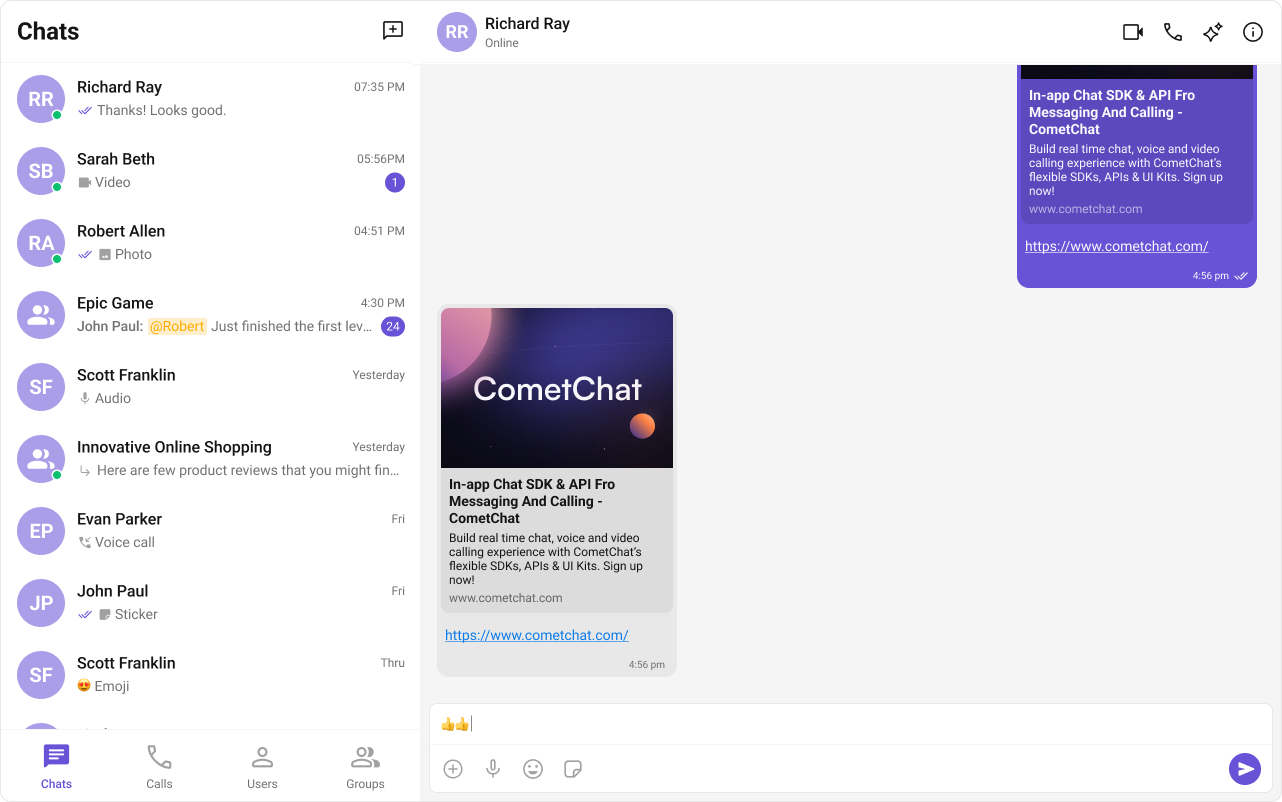
Message Shortcuts
The Message Shortcuts extension enables users to send predefined messages using short codes. For example, typing!hb can automatically expand to Happy birthday!. For a comprehensive understanding and guide on implementing and using the Message Shortcuts Extension, refer to our specific guide on the Message Shortcuts Extension.
Pin Message
The Pin Message extension allows users to pin important messages in a conversation, making them easily accessible for all participants. For a comprehensive understanding and guide on implementing and using the Pin Message Extension, refer to our specific guide on the Pin Message Extension.Rich Media Preview
The Rich Media Preview extension generates rich preview panels for URLs shared in messages, fetching detailed information from popular sites using iFramely. For a comprehensive understanding and guide on implementing and using the Rich Media Preview Extension, refer to our specific guide on the Rich Media Preview Extension.Save Message
The Save Message extension allows users to bookmark messages for later reference. Saved messages are private and visible only to the user who saved them. For a comprehensive understanding and guide on implementing and using the Save Message Extension, refer to our specific guide on the Save Message Extension.Thumbnail Generation
The Thumbnail Generation extension automatically creates a smaller preview image whenever a larger image is shared, helping to reduce the upload/download time and bandwidth usage. For a comprehensive understanding and guide on implementing and using the Thumbnail Generation Extension, refer to our specific guide on the Thumbnail Generation Extension. Once you have successfully activated the Thumbnail Generation Extension from your CometChat Dashboard, the feature will automatically be incorporated into the Message Bubble of MessageList Component component of UI Kits.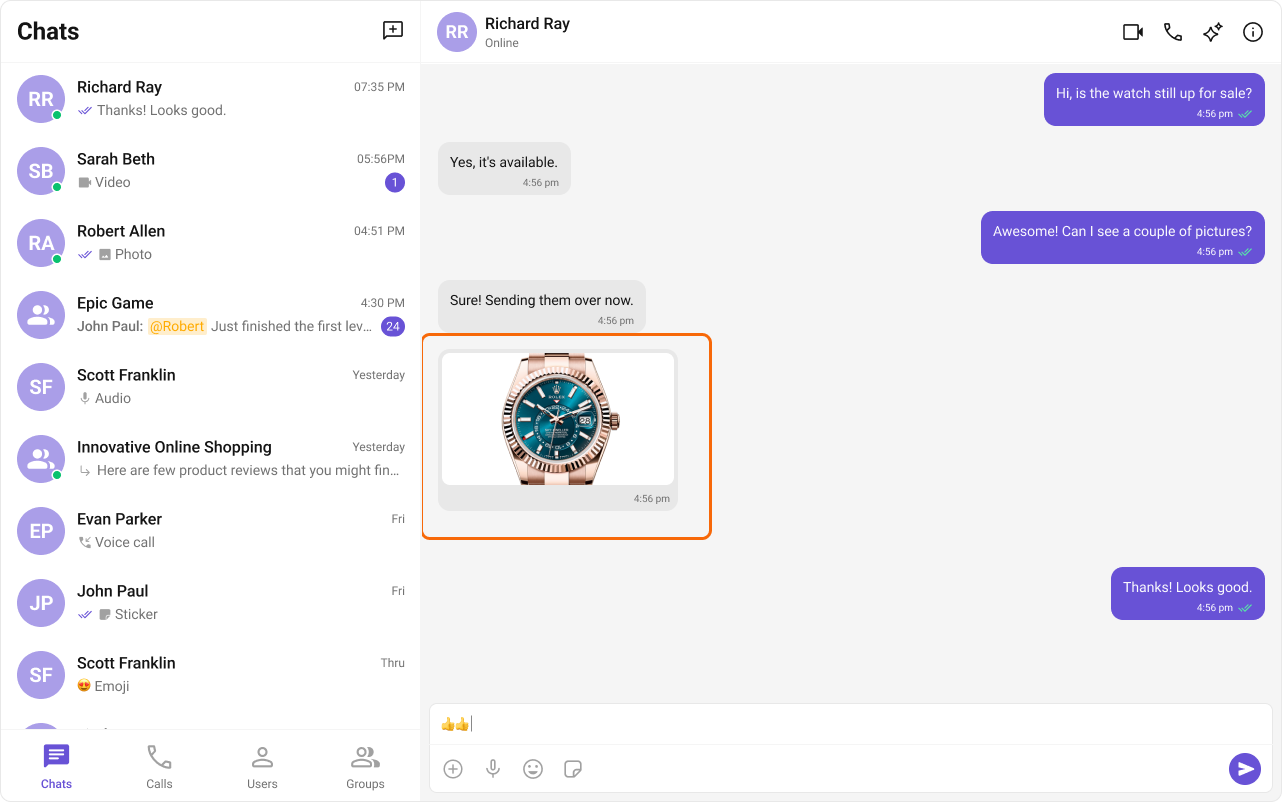
TinyURL
The TinyURL extension provides URL shortening capabilities for messages, similar to Bitly but using the TinyURL service. For a comprehensive understanding and guide on implementing and using the TinyURL Extension, refer to our specific guide on the TinyURL Extension.Voice Transcription
The Voice Transcription extension converts audio messages into text, making it easier to read voice messages without playing them. For a comprehensive understanding and guide on implementing and using the Voice Transcription Extension, refer to our specific guide on the Voice Transcription Extension.User Engagement
Giphy
The Giphy extension allows users to search for and share GIFs in their conversations, adding a fun and expressive element to chats. For a comprehensive understanding and guide on implementing and using the Giphy Extension, refer to our specific guide on the Giphy Extension.Message Translation
The Message Translation extension in CometChat is designed to translate any message into your local locale. It eliminates language barriers, making the chat more inclusive. For a comprehensive understanding and guide on implementing and using the Message Translation Extension, refer to our specific guide on the Message Translation Extension. Once you have successfully activated the Message Translation Extension from your CometChat Dashboard, the feature will automatically be incorporated into the Action Sheet of MessageList Component component of UI Kits.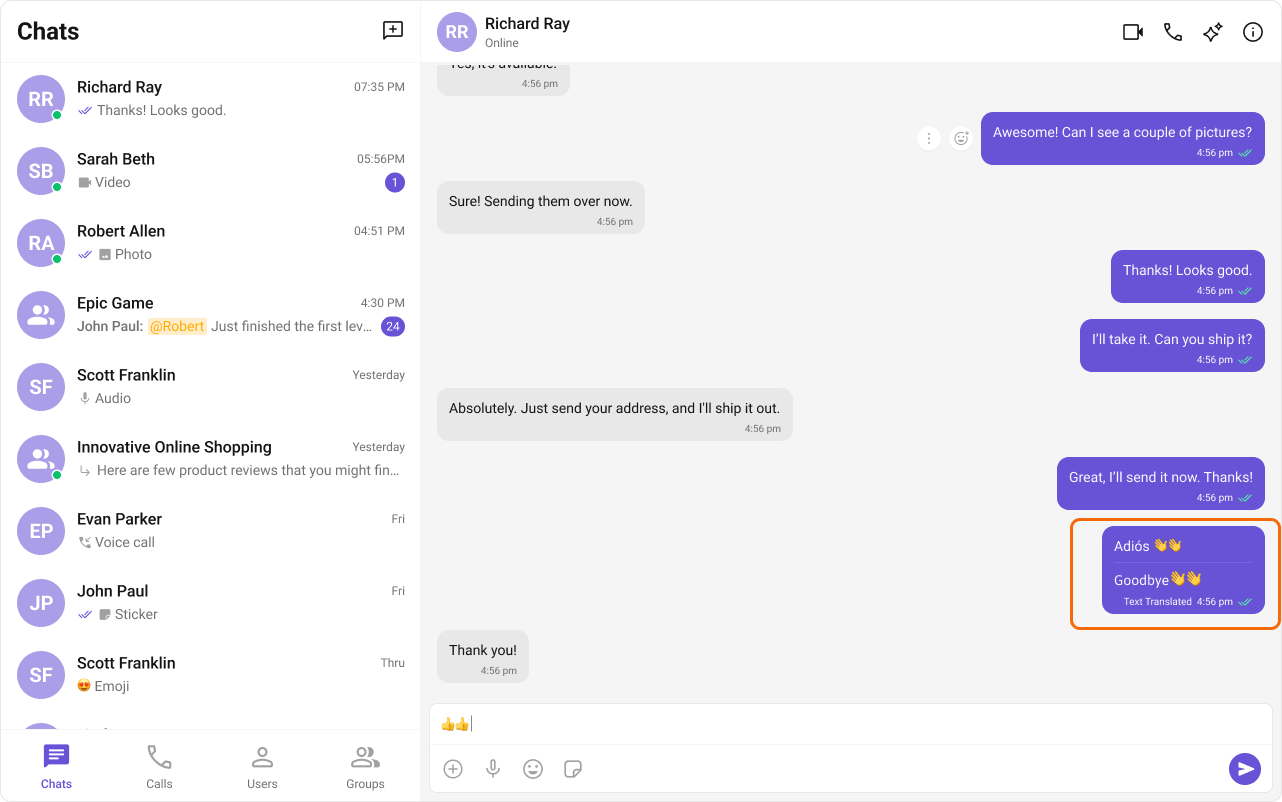
Polls
The Polls extension enhances group discussions by allowing users to create polls. Users can ask questions with a predefined list of answers, enabling a quick, organized way to gather group opinions. For a comprehensive understanding and guide on implementing and using the Polls Extension, refer to our specific guide on the Polls Extension. Once you have successfully activated the Polls Extension from your CometChat Dashboard, the feature will automatically be incorporated into the Action Sheet of the Message Composer component of UI Kits.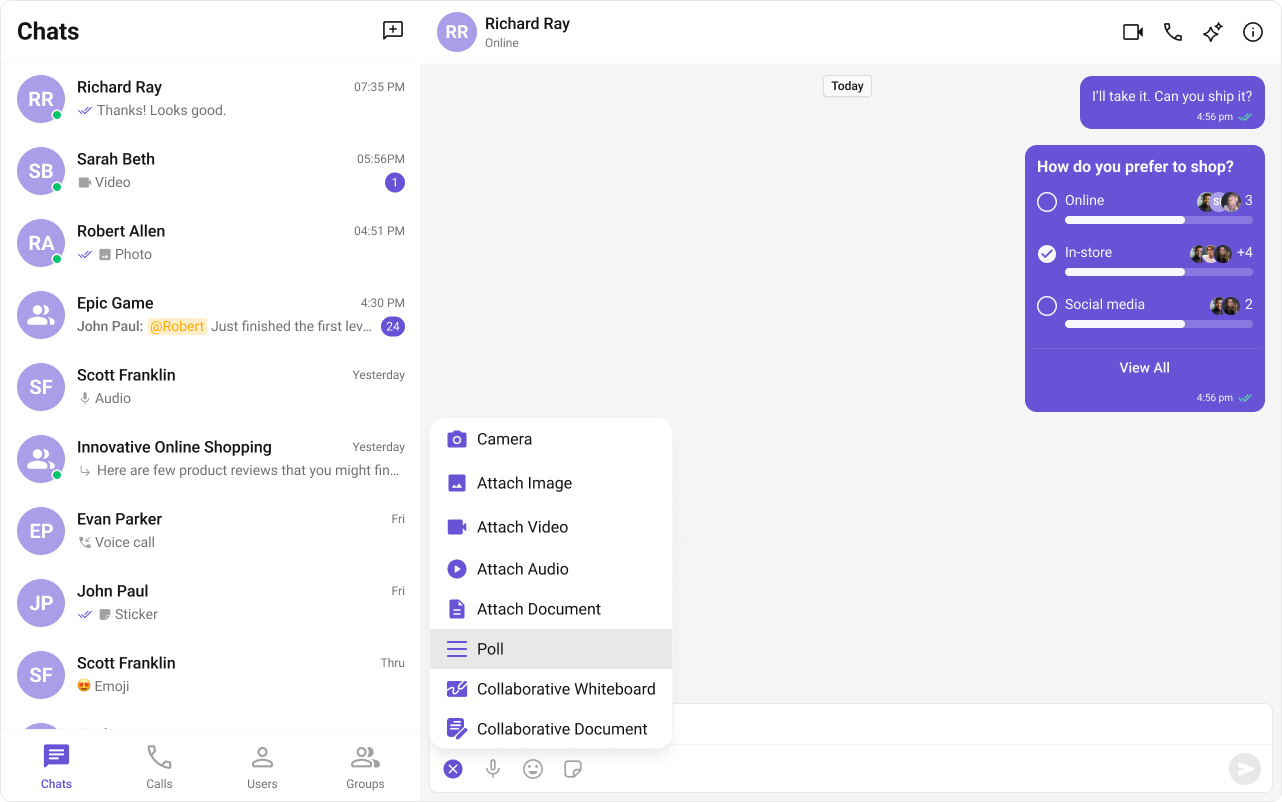
Reminders
The Reminders extension allows users to set reminders for messages or create personal reminders. When a reminder is due, a bot sends a notification message to the user. For a comprehensive understanding and guide on implementing and using the Reminders Extension, refer to our specific guide on the Reminders Extension.Stickers
The Stickers extension allows users to express their emotions more creatively. It adds a much-needed fun element to the chat by allowing users to send various pre-designed stickers. For a comprehensive understanding and guide on implementing and using the Sticker Extension, refer to our specific guide on the Sticker Extension. Once you have successfully activated the Sticker Extension from your CometChat Dashboard, the feature will automatically be incorporated into the Message Composer component of UI Kits.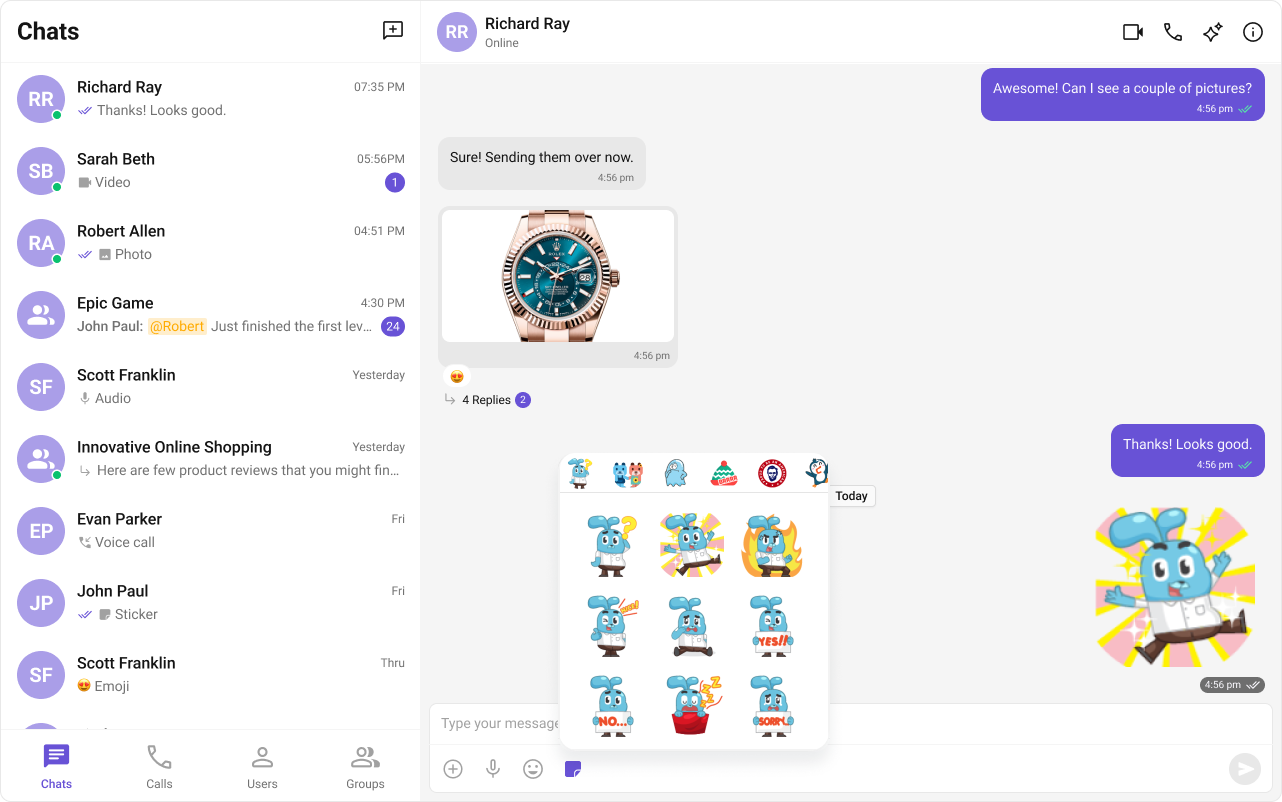
Stipop
The Stipop extension integrates the world’s trendiest sticker platform into your chat, allowing users to search for and send stickers from Stipop’s extensive library. For a comprehensive understanding and guide on implementing and using the Stipop Extension, refer to our specific guide on the Stipop Extension.Tenor
The Tenor extension allows users to search for and share GIFs from Tenor’s library in their conversations. For a comprehensive understanding and guide on implementing and using the Tenor Extension, refer to our specific guide on the Tenor Extension.Collaboration
Collaborative Document
With the Collaborative Document extension, users can work together on a shared document. This feature is essential for remote teams where document collaboration is a recurring requirement. For a comprehensive understanding and guide on implementing and using the Collaborative Document Extension, refer to our specific guide on the Collaborative Document Extension. Once you have successfully activated the Collaborative Document Extension from your CometChat Dashboard, the feature will automatically be incorporated into the Action Sheet of the Message Composer component of UI Kits.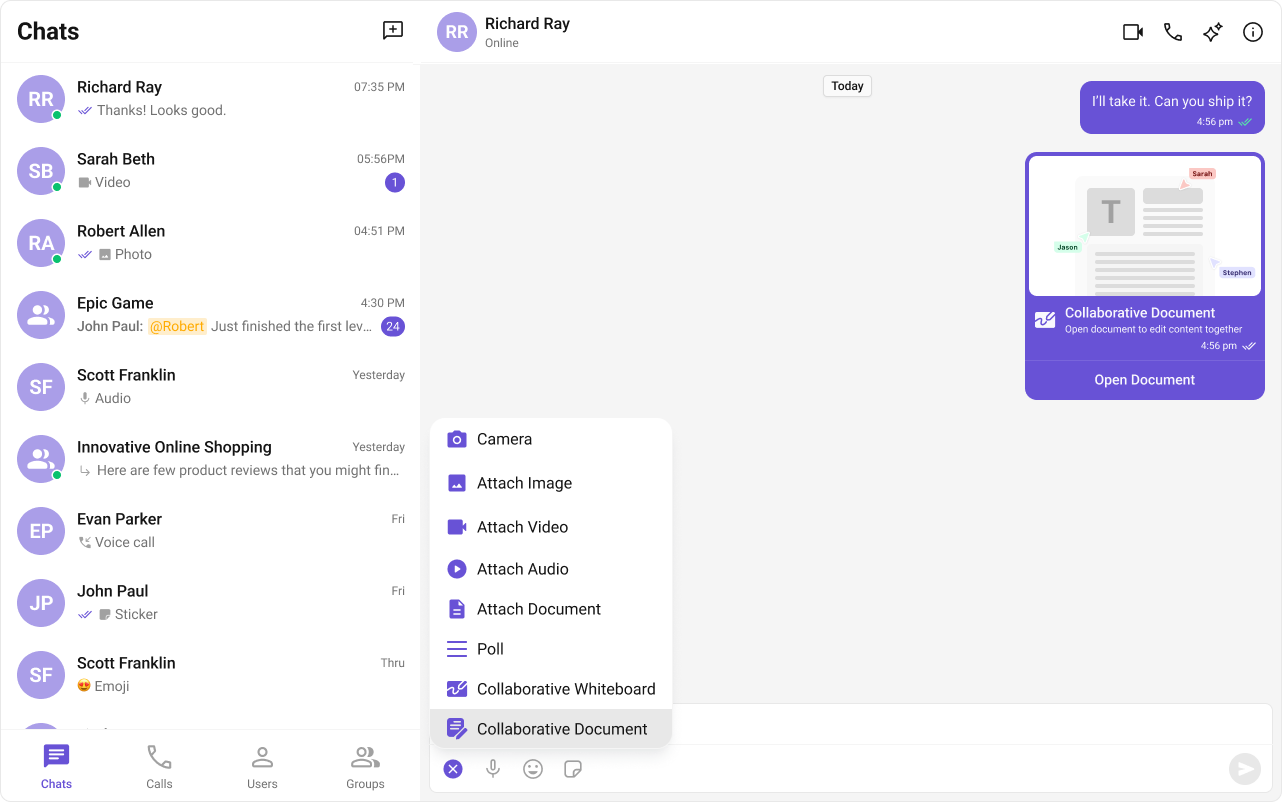
Collaborative Whiteboard
The Collaborative Whiteboard extension facilitates real-time collaboration. Users can draw, brainstorm, and share ideas on a shared digital whiteboard. For a comprehensive understanding and guide on implementing and using the Collaborative Whiteboard Extension, refer to our specific guide on the Collaborative Whiteboard Extension. Once you have successfully activated the Collaborative Whiteboard Extension from your CometChat Dashboard, the feature will automatically be incorporated into the Action Sheet of the Message Composer component of UI Kits.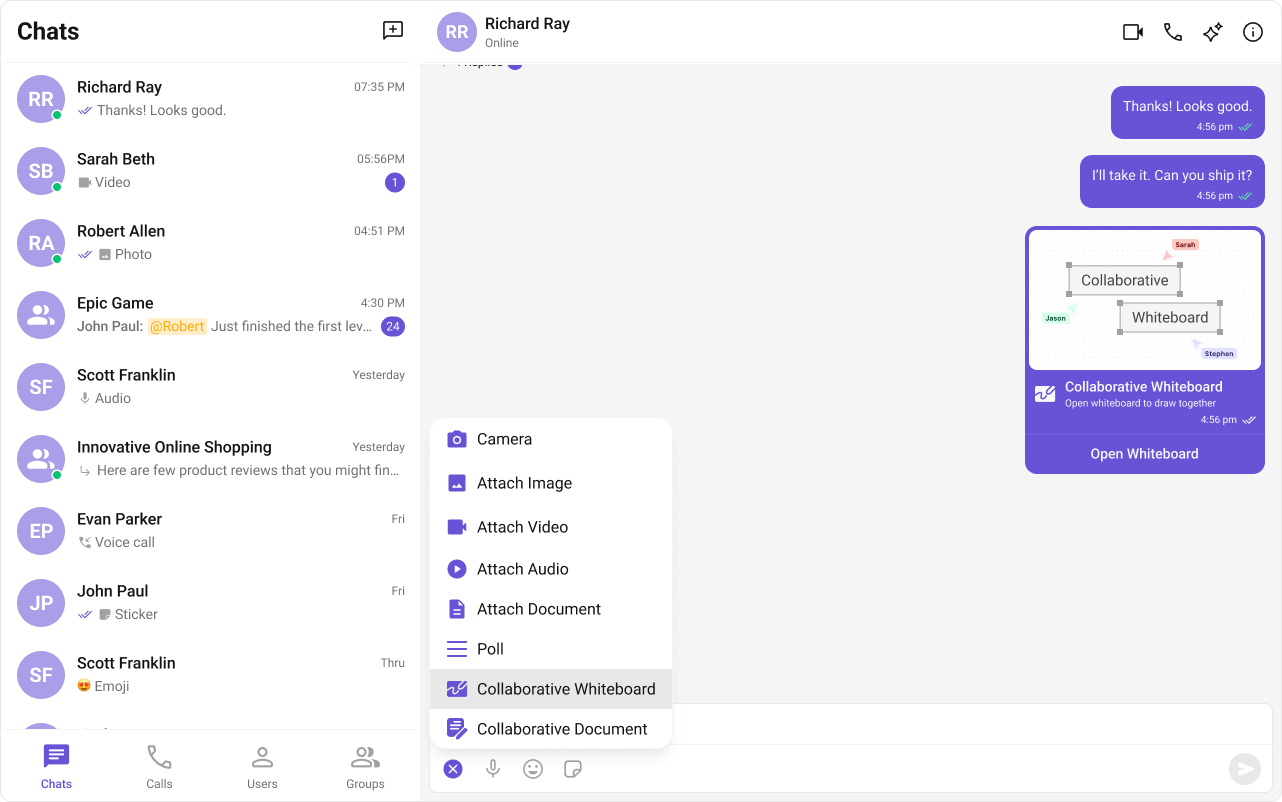
Security
Disappearing Messages
The Disappearing Messages extension allows users to send messages that automatically disappear after a specified time interval. This works for both one-on-one and group messages. For a comprehensive understanding and guide on implementing and using the Disappearing Messages Extension, refer to our specific guide on the Disappearing Messages Extension.Customer Support
Chatwoot
The Chatwoot extension makes customer support seamless by allowing your users to communicate with your support team directly through CometChat, eliminating the need for a separate support interface. For a comprehensive understanding and guide on implementing and using the Chatwoot Extension, refer to our specific guide on the Chatwoot Extension.Intercom
The Intercom extension integrates Intercom’s customer support platform with CometChat, enabling users to chat with your support team using the same chat interface they use for regular conversations. For a comprehensive understanding and guide on implementing and using the Intercom Extension, refer to our specific guide on the Intercom Extension.Smart Chat Features
Conversation Starter
Conversation Starter suggests AI-generated opening messages to help users begin a new chat. For a comprehensive understanding and guide on implementing and using Conversation Starter, refer to our specific guide on the Conversation Starter and the AI Features overview.Smart Replies
Smart Replies provide AI-generated response suggestions to keep conversations flowing. For a comprehensive understanding and guide on implementing and using Smart Replies, refer to our specific guide on the Smart Replies and the AI Features overview.Conversation Summary
Conversation Summary generates an AI-written recap of a conversation when needed. For a comprehensive understanding and guide on implementing and using Conversation Summary, refer to our specific guide on the Conversation Summary and the AI Features overview.Common Failure Modes
Common Failure Modes
| Symptom | Cause | Fix |
|---|---|---|
| Extension feature not appearing | Extension not activated in CometChat Dashboard | Enable the specific extension from your Dashboard |
| Component doesn’t render | CometChatUIKit.init() not called or not awaited | Ensure init completes before rendering. See Methods |
| Component renders but no extension UI | User not logged in | Call CometChatUIKit.login("UID") after init |
| Stickers not showing in composer | Sticker extension not enabled | Activate Sticker Extension in Dashboard |
| Polls option missing from action sheet | Polls extension not enabled | Activate Polls Extension in Dashboard |
| Link preview not rendering in messages | Link Preview extension not enabled | Activate Link Preview Extension in Dashboard |
| SSR hydration error | Component uses browser APIs on server | Wrap in useEffect or dynamic import with ssr: false. See Next.js Integration |